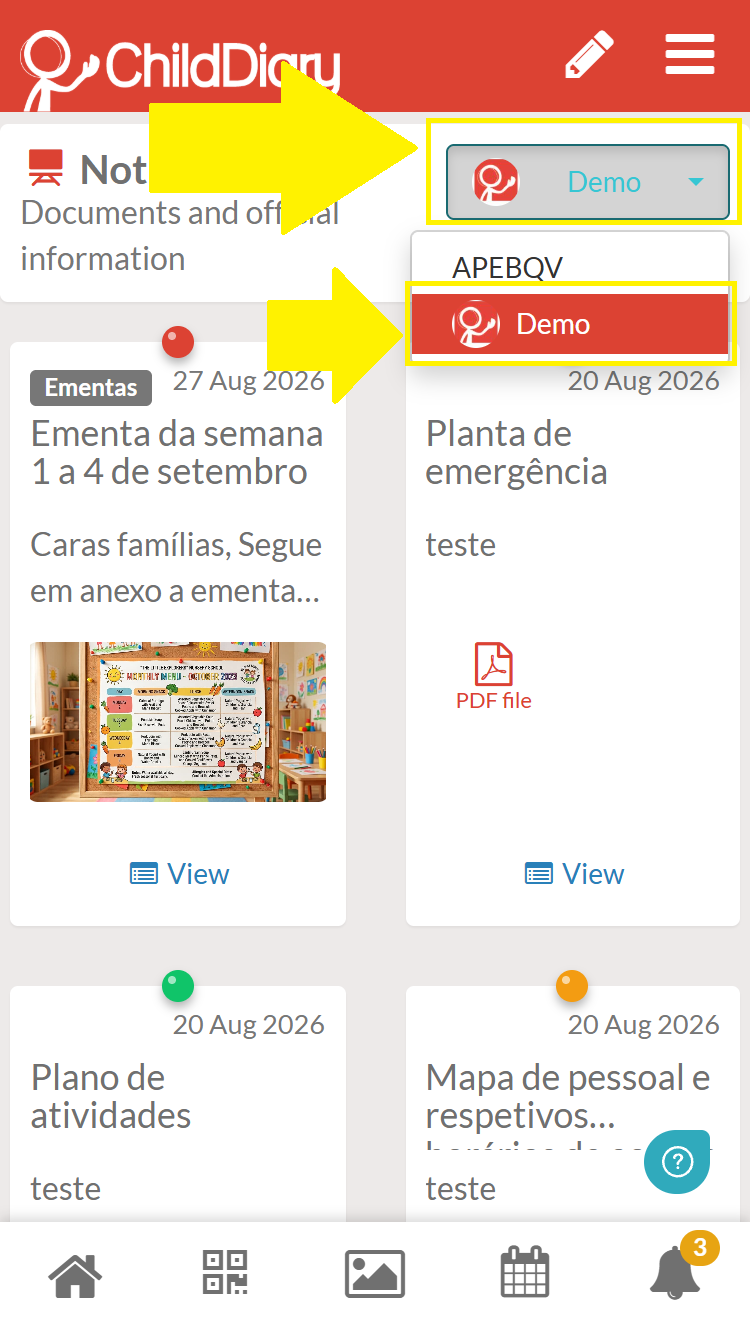
This section is designed to provide important information and updates, and to make all the necessary documents available to families, just as you would find at the entrance to your school.
Table of Content
- How to create notices for the Notice board
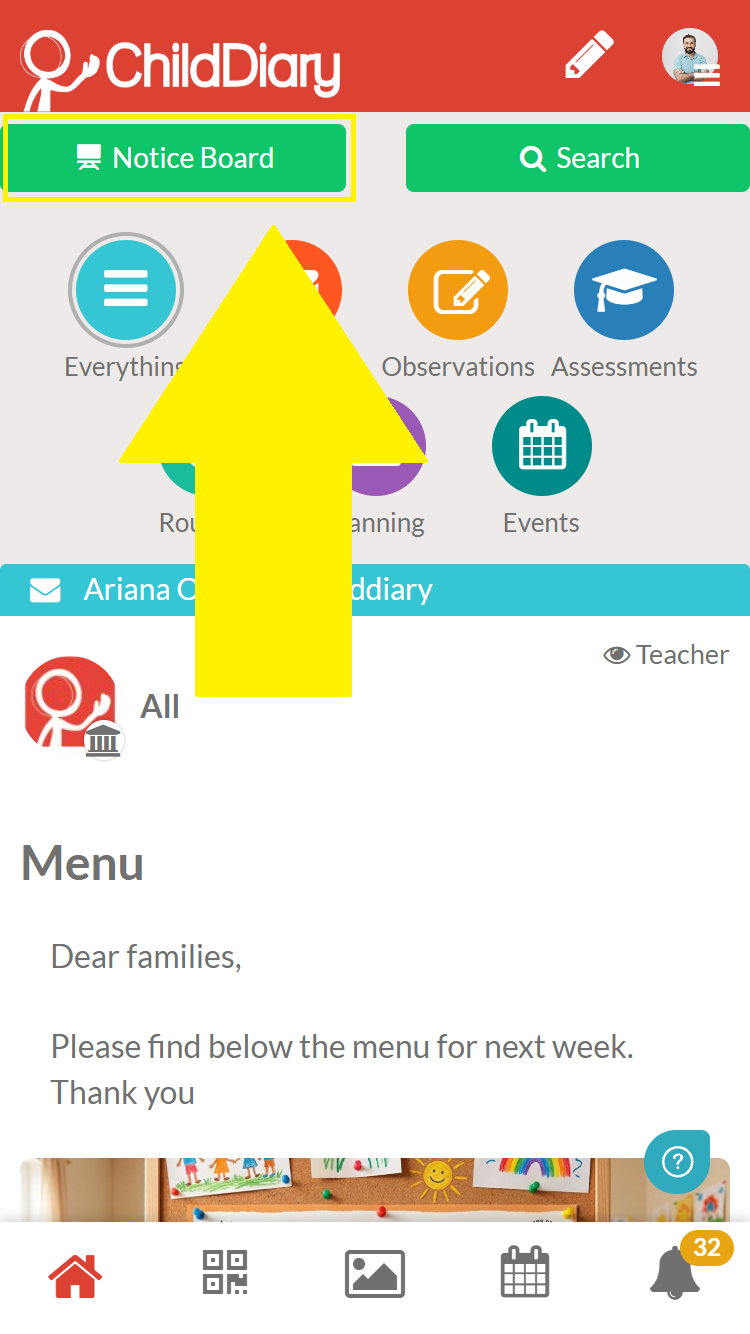
- How to View the Notice board
- How to remove notices from the Notice board
- Who can set the content of the Notice board
- How parents can view the board
How to create notices for the Notice board
Only content shared as messages to the All group has the option to post to the notice board.
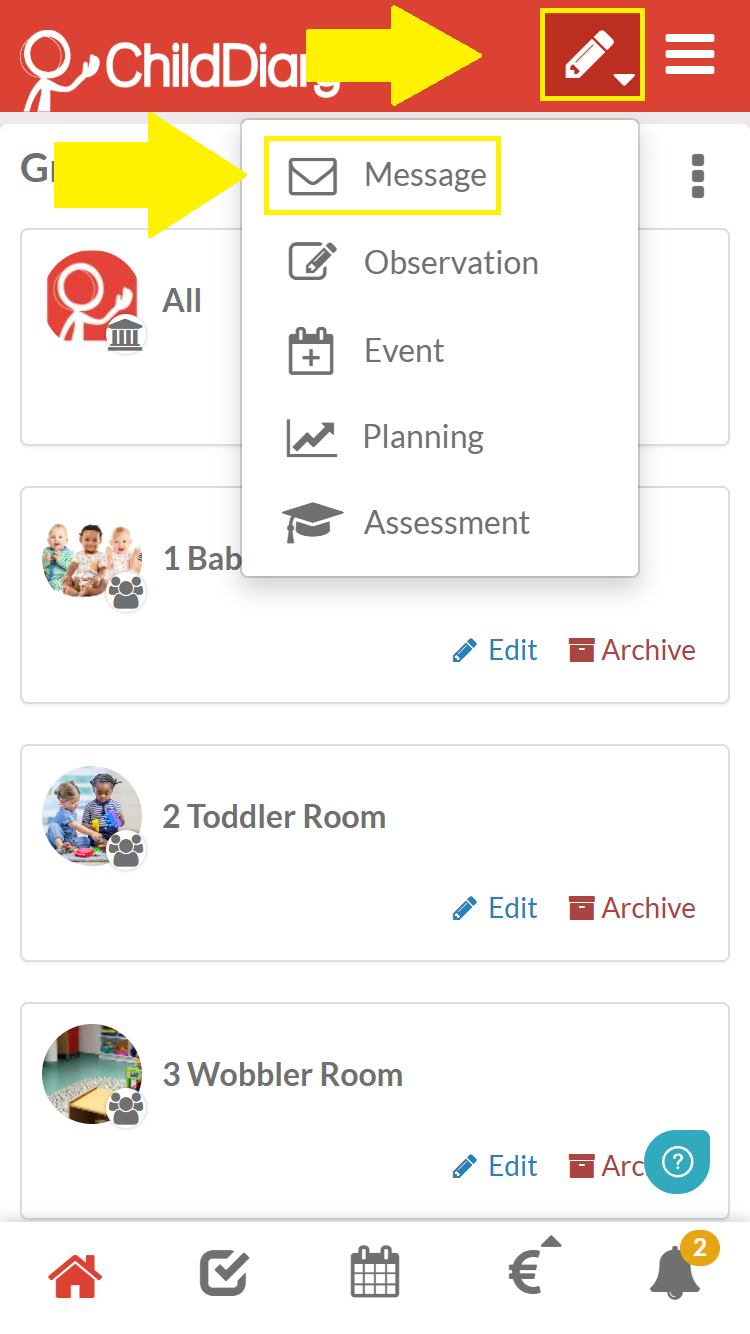
Step 1 – Whilst in Admin mode, click the Pencil icon on the red bar
Step 2 – Select ‘Create a Message’
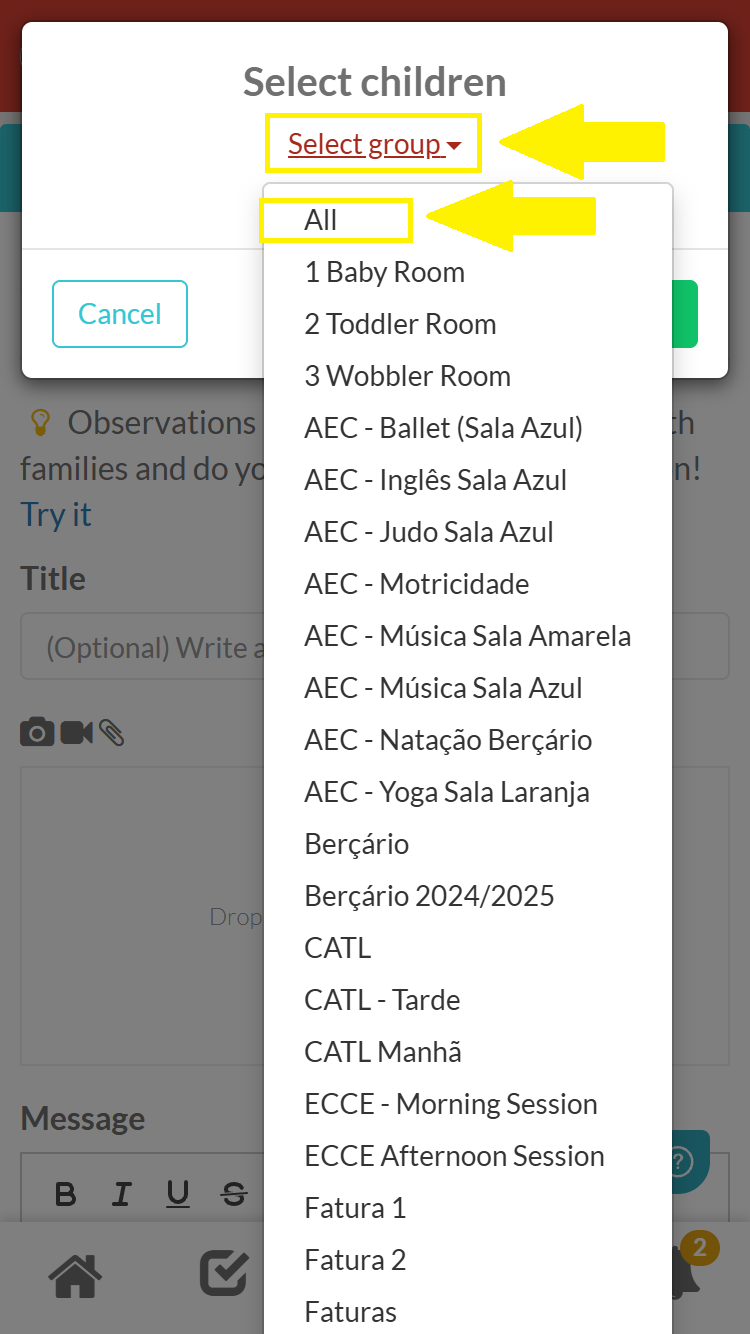
Step 3 – Set ‘All’ as the context
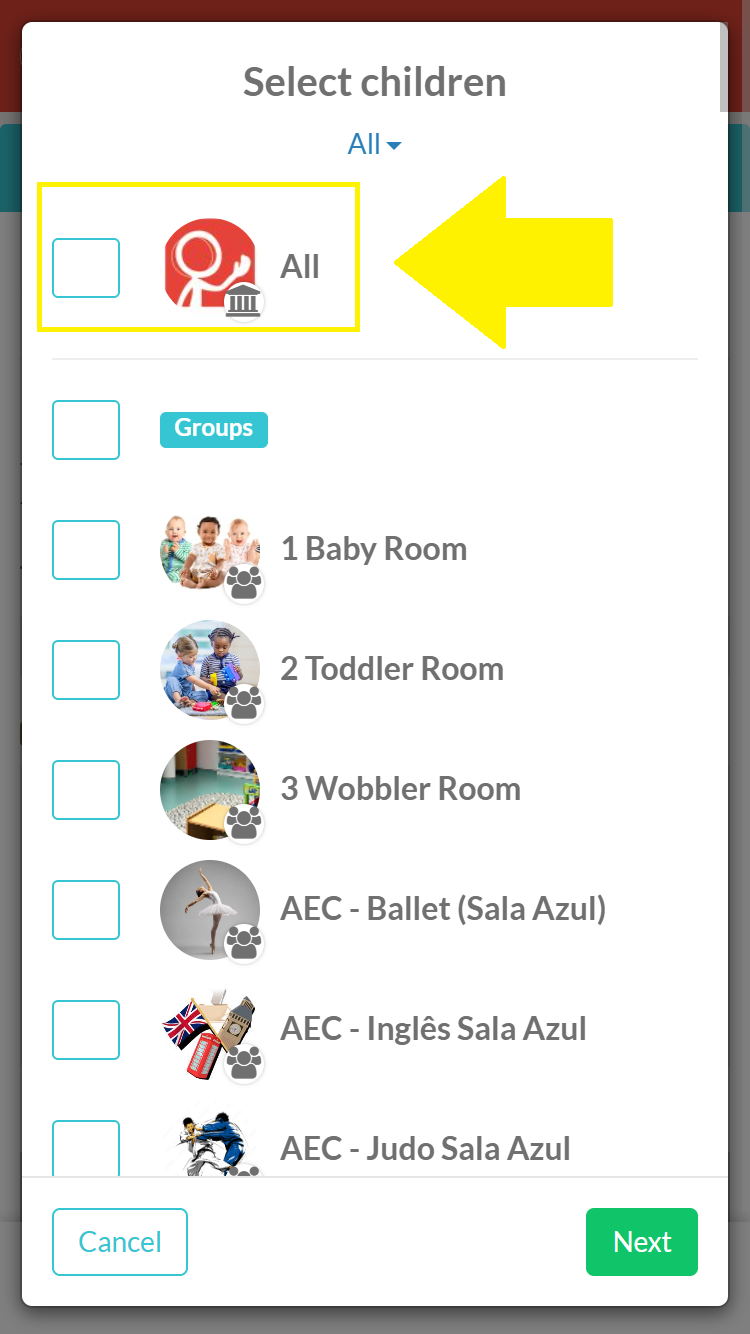
Step 4 – Select ‘All’ as the recipient
Step 5 – Fill in the required content
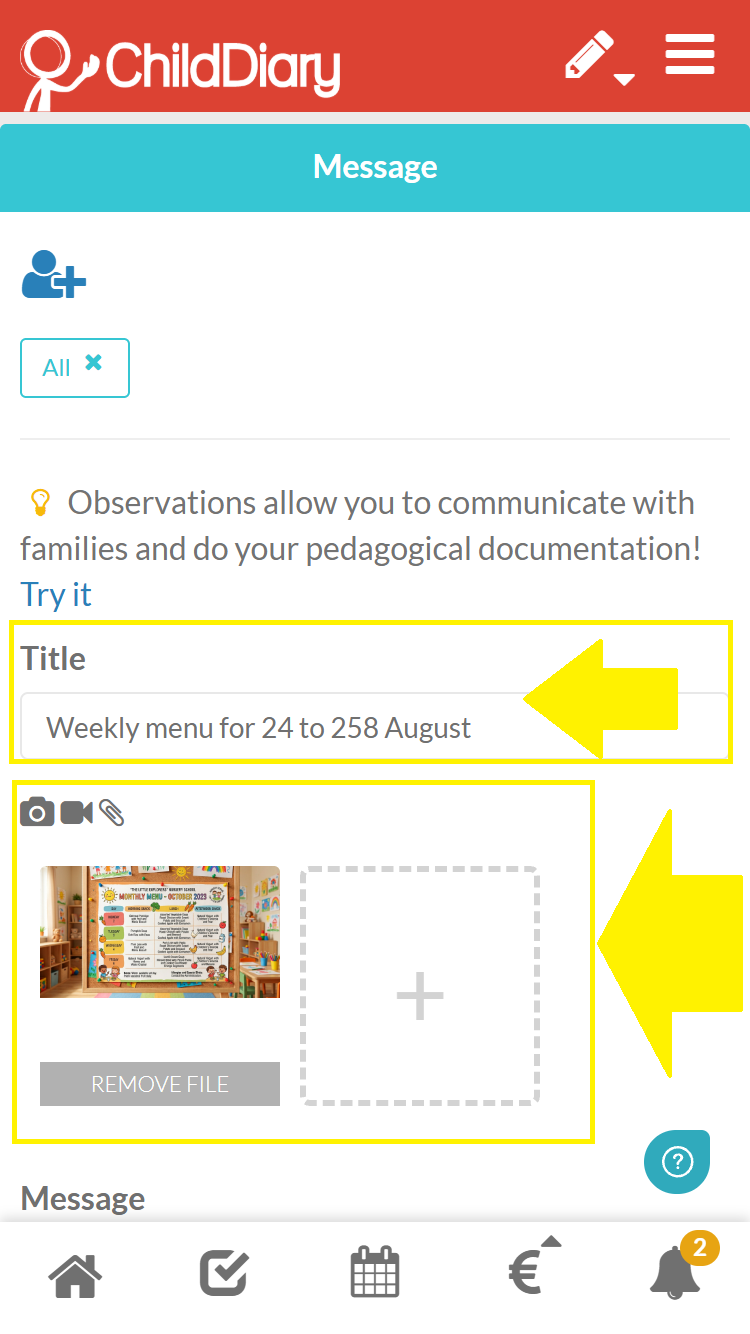
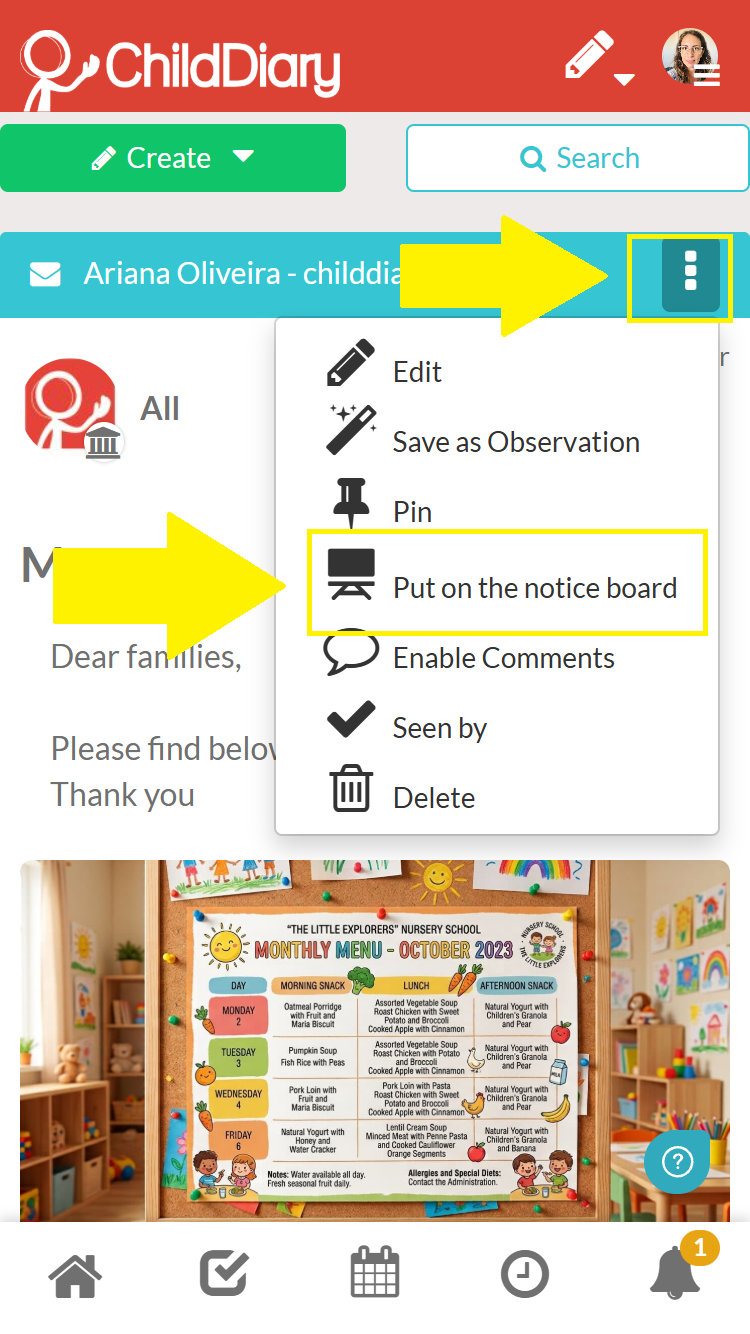
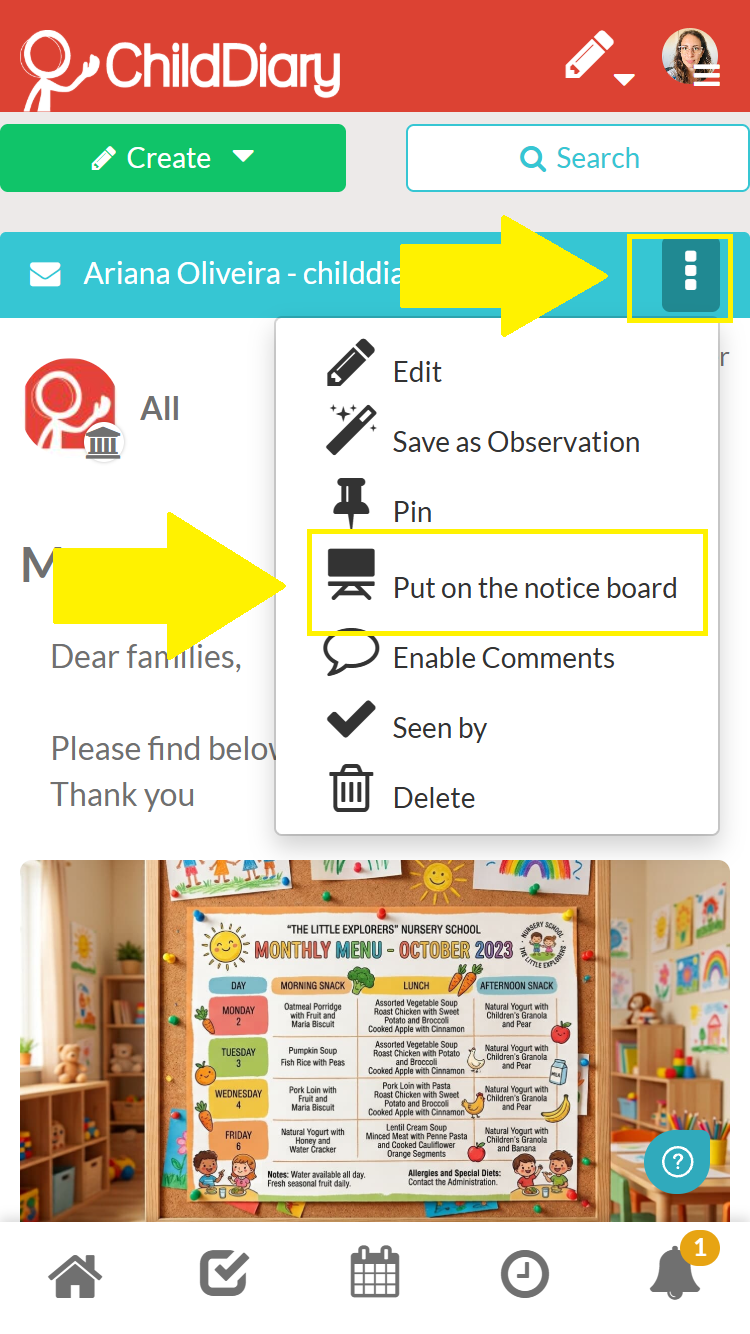
Step 6 – Once the message has been sent, select the three dots on the blue message bar
Step 7 – Click on the ‘Send to board’ option
How to View the Notice board
Users with the Management, Administration and Teacher profiles can view the Notice board as follows:
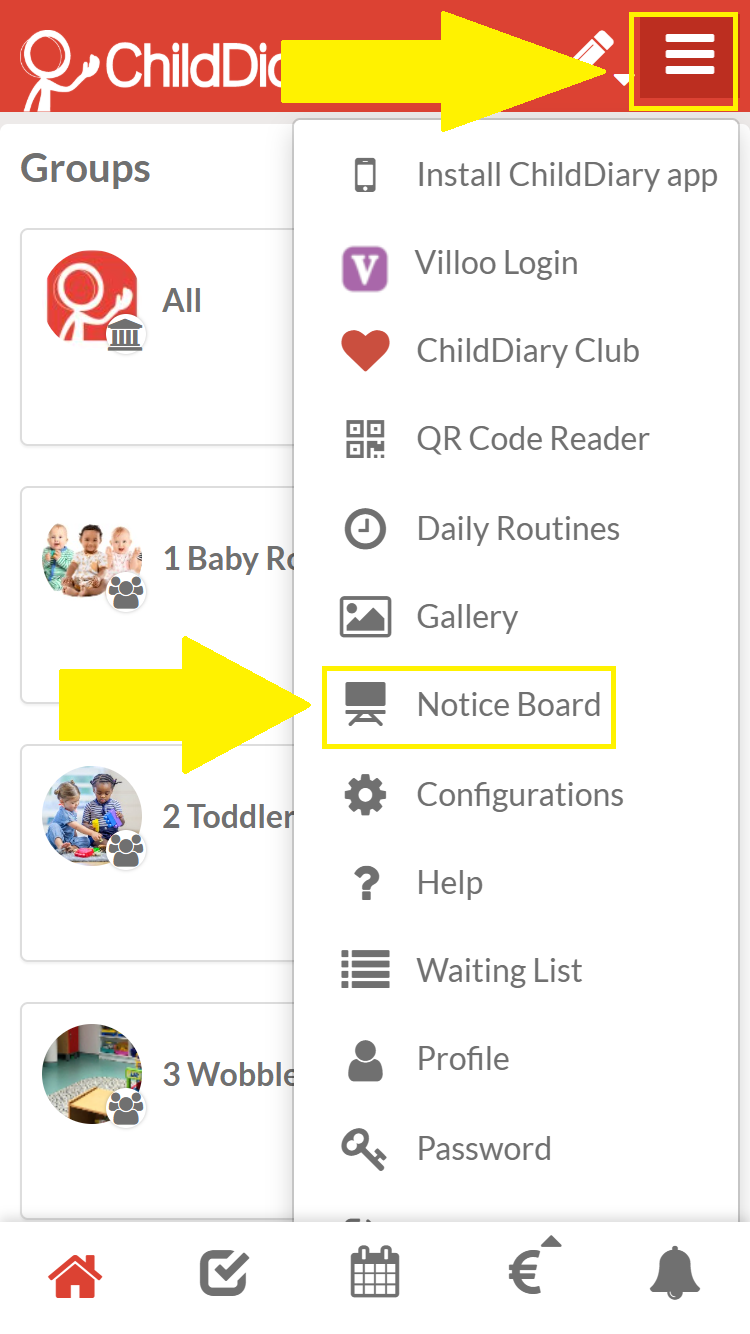
Step 1 – Select the three-bar icon on the red bar
OR
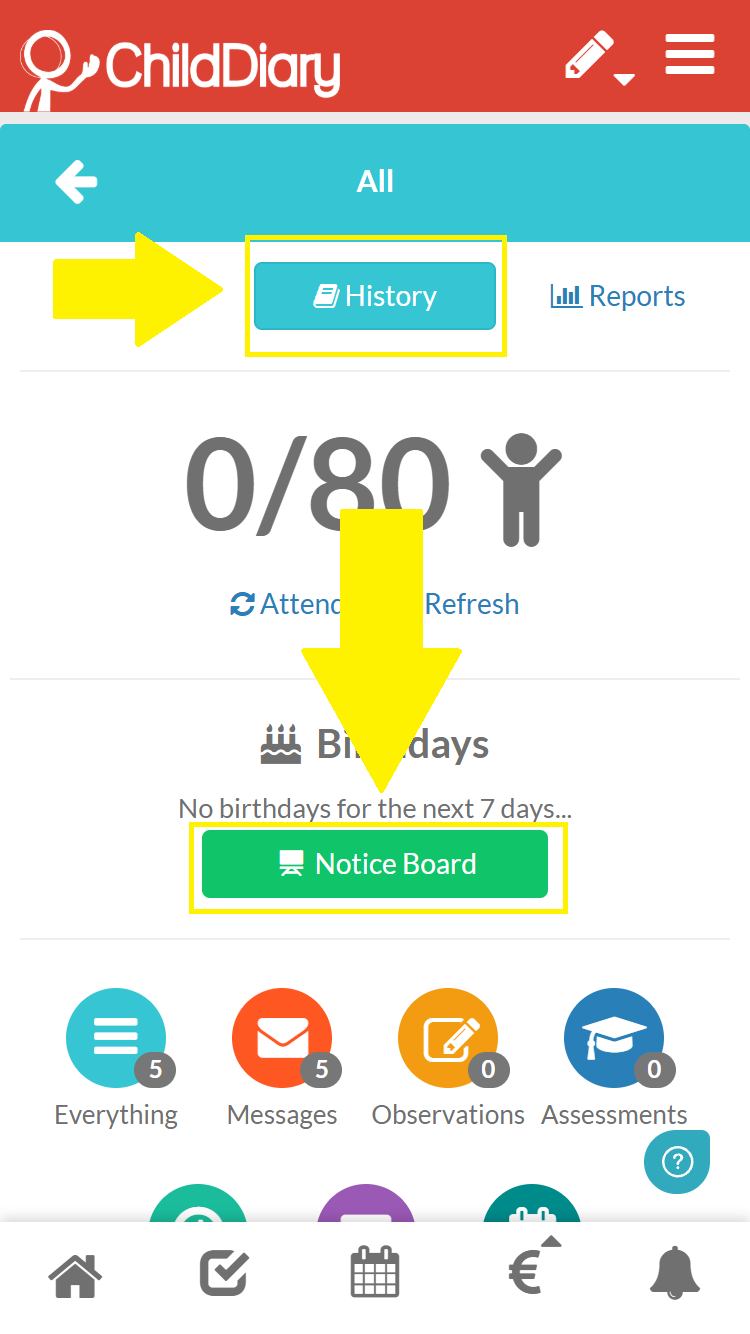
Go to the ‘History’ section of a room or the General section and click on the ‘School Board’ option
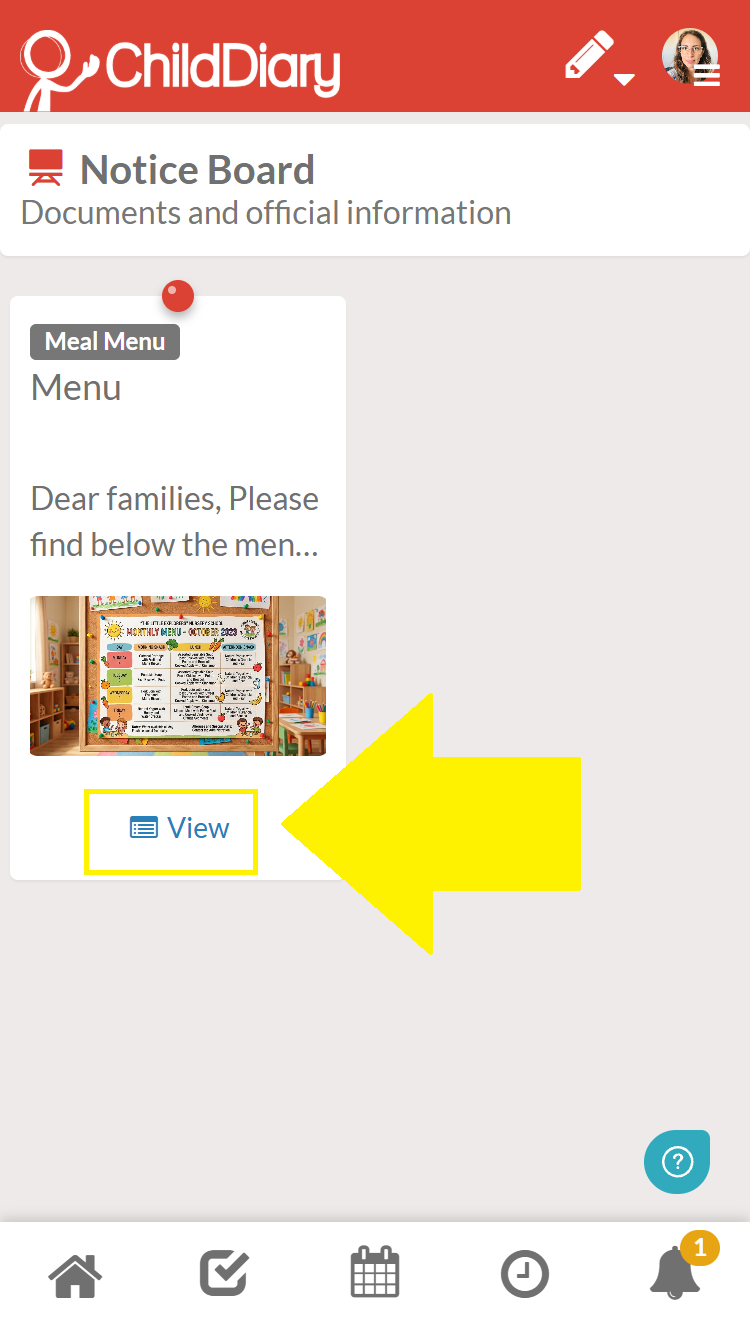
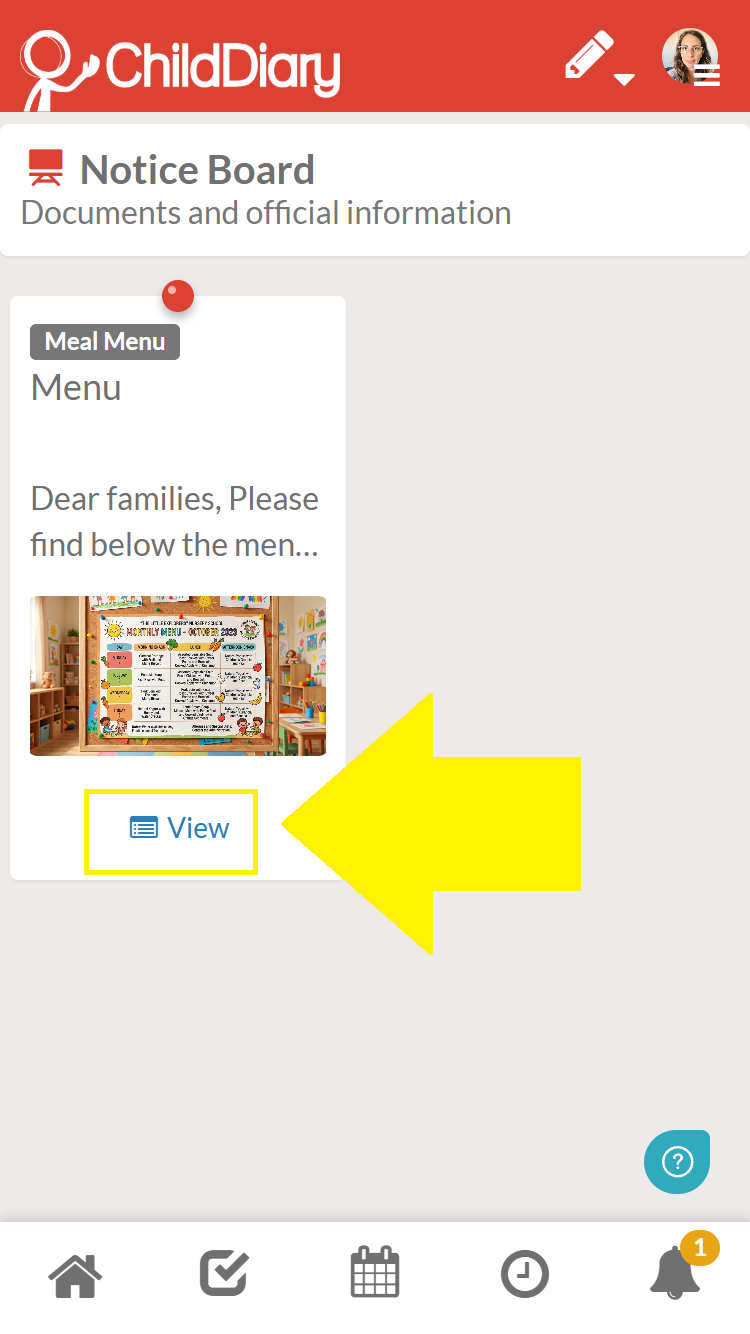
Step 2 – Check all available publications.
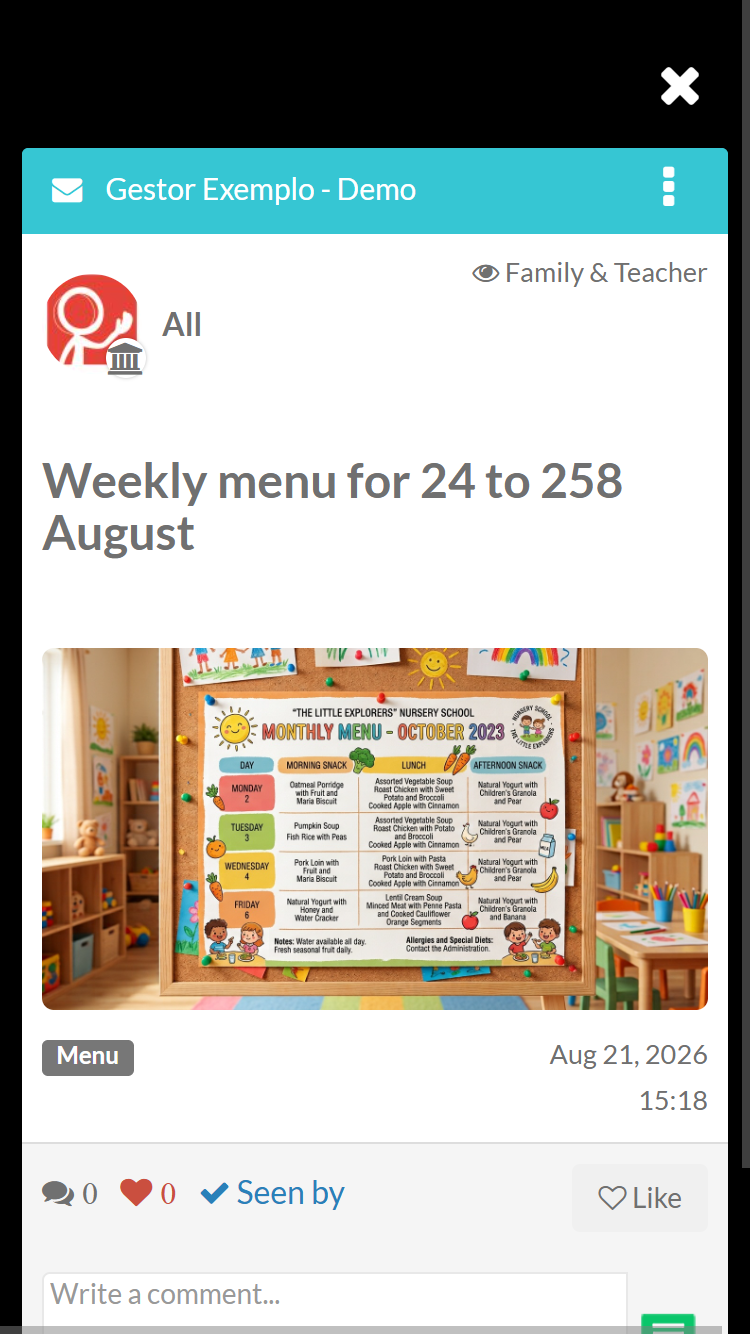
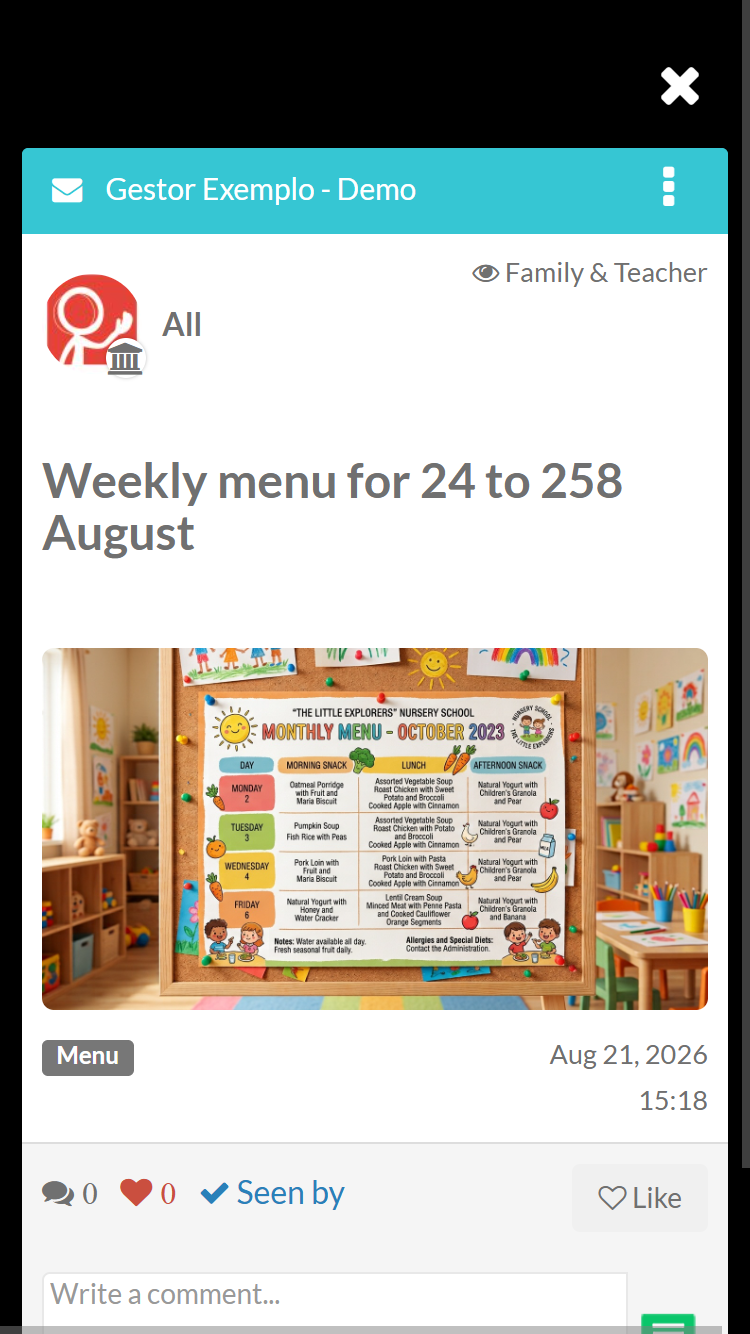
Step 3 – Click on the ‘View’ option for the publication you want
How to remove notices from the Notice board
Only the profile that posts the notices can remove them.
To remove content from the Notice Board, you must log in to your account via a computer and follow these steps:
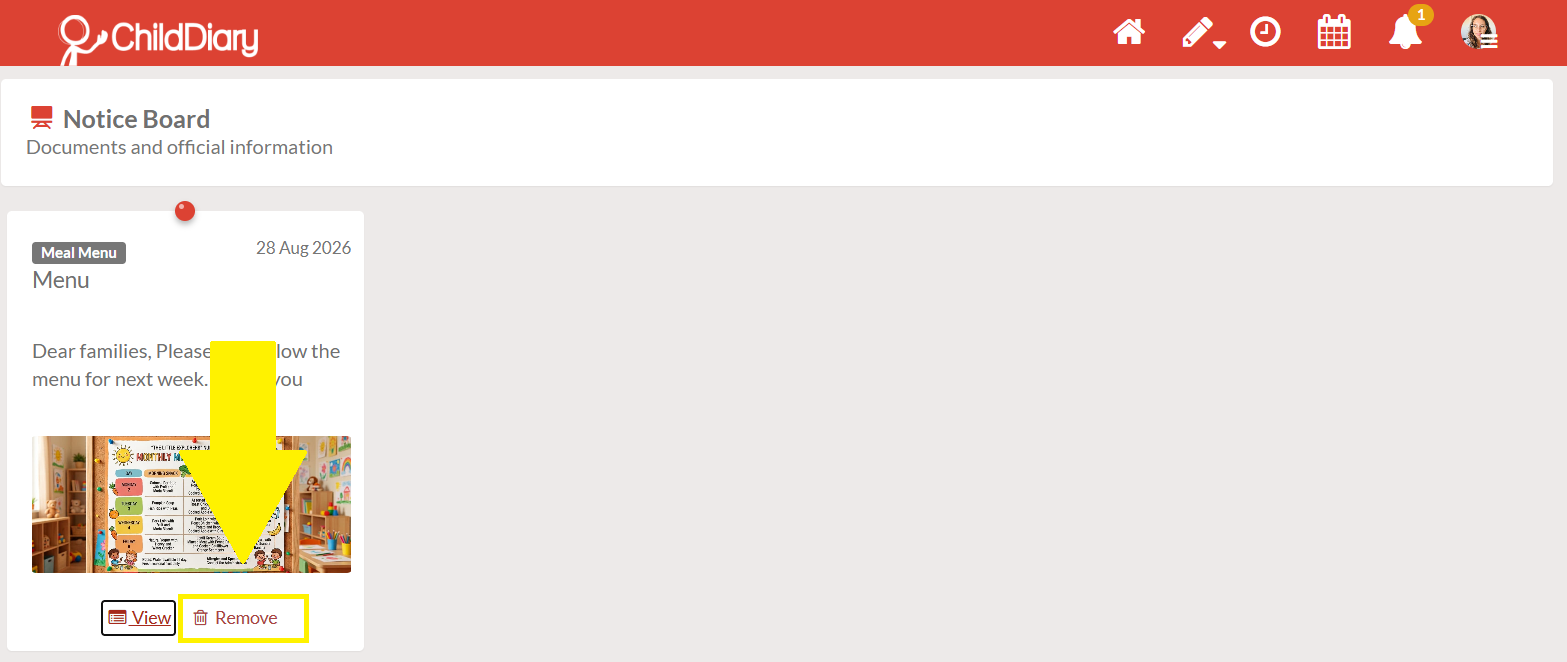
Step 1 – On the post you wish to remove, select the ‘Remove from Noticeboard’ option
Step 2 – Confirm that you wish to remove the information from the table
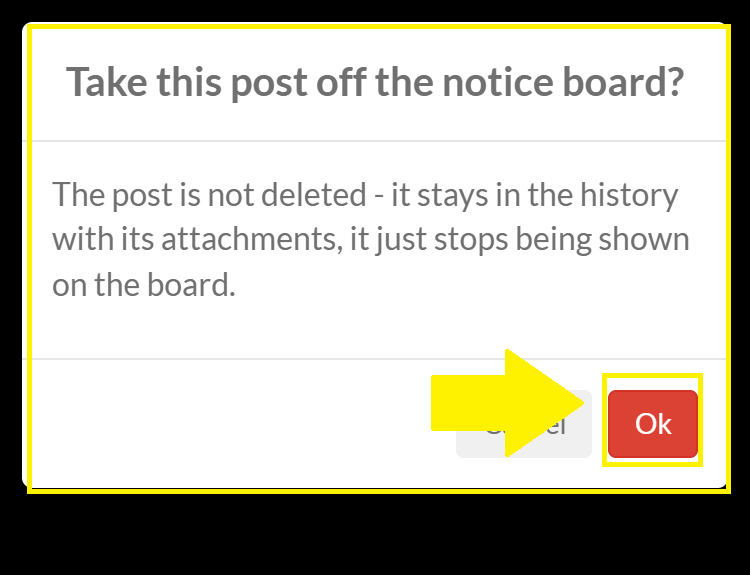
NOTE: Removing from the board does not delete the content from the platform.
Who can set the content of the Notice board
Only the administrator profile can select the content displayed on the Notice board.
What if I want to post a previously sent message on the Notice Board?
Search for the content you want and follow these steps:
Step 1 – Click on the three dots visible on the blue bar of the message
Step 2 – Select the ‘Post to Notice Board’ option
How parents can view the board
To view the board, parents should follow these steps:
Step 1 – Select the icon with the three stripes on the red bar
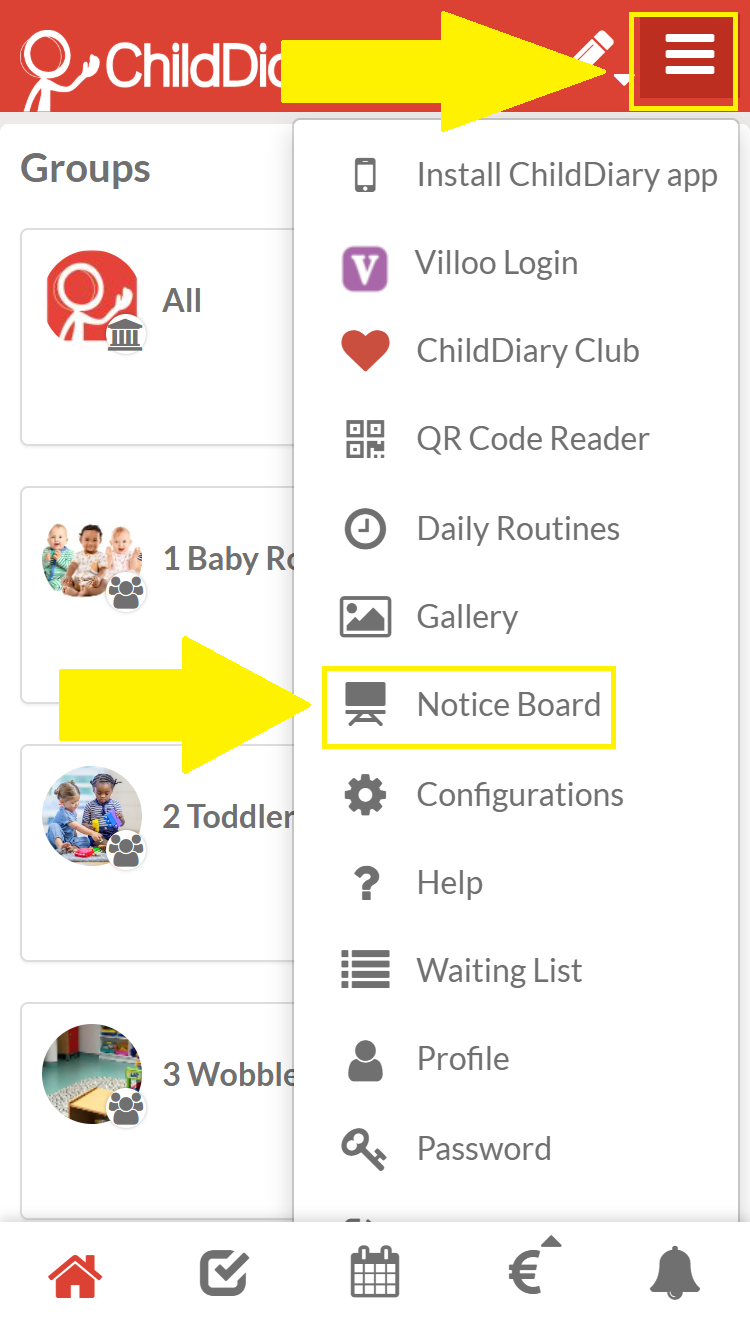
Step 2 – Check all available publications
Step 3 – Click on the ‘View’ option for the publication you want
What if parents have children at different schools?
Step 1 – Log in to the School Notice
Step 2 – Select the name of the school you wish to look up