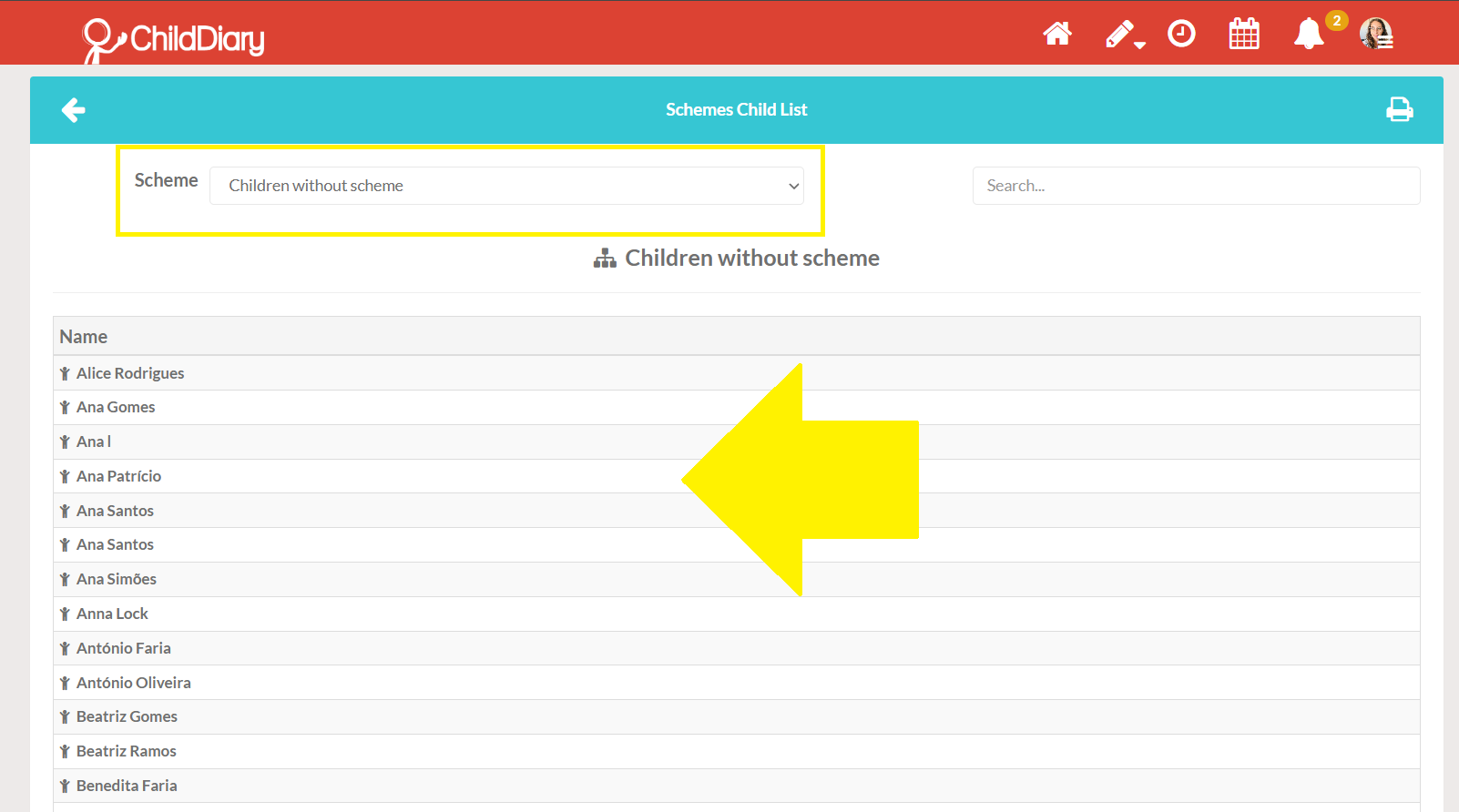
This report allows you to create a list of children for each Schemes that has been configured and linked to them. Below, we explain how you can carry out this process effectively.
Find out how to configure the Schemes here.
TOC
- Step-by-Step Guide to Generating the Report
- Finding out which children do not have an associated Scheme
Step-by-Step Guide to Generating the Report
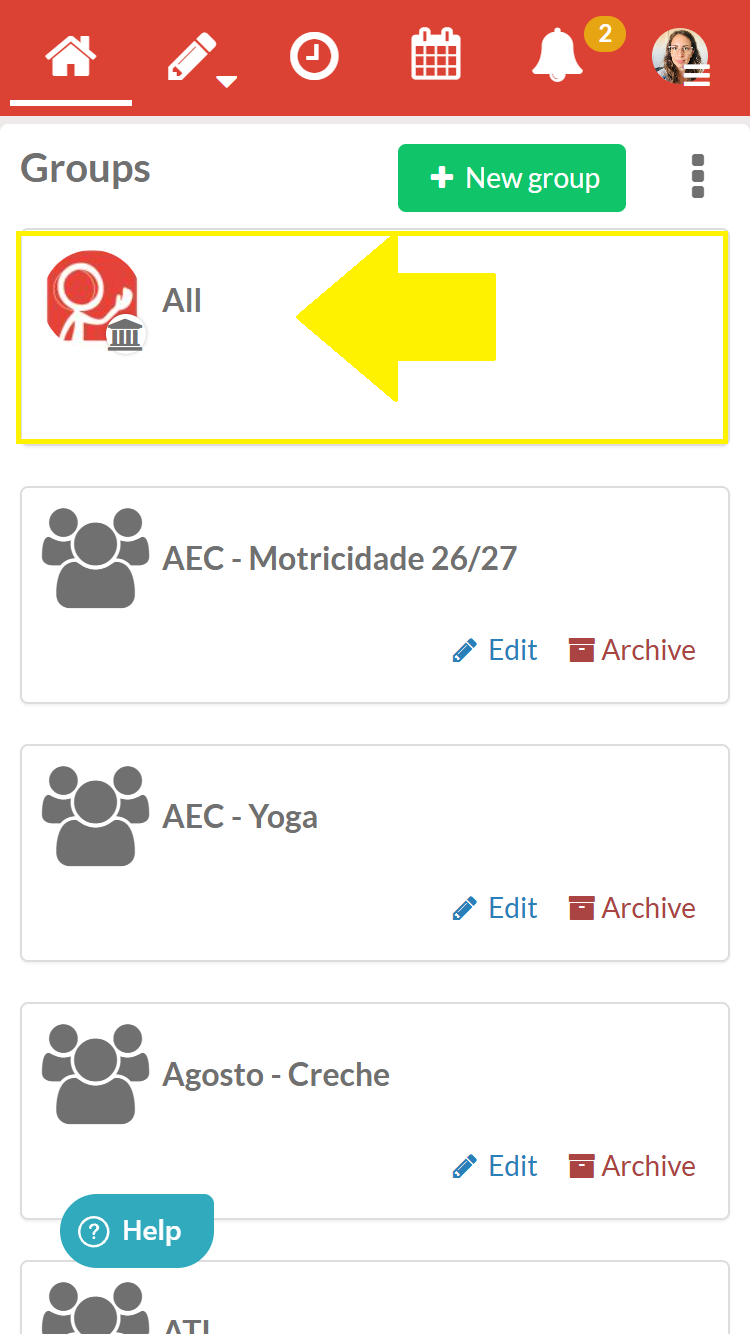
Step 1 – Using the Management or Administration account, navigate to the Reports section for a Group or the General section
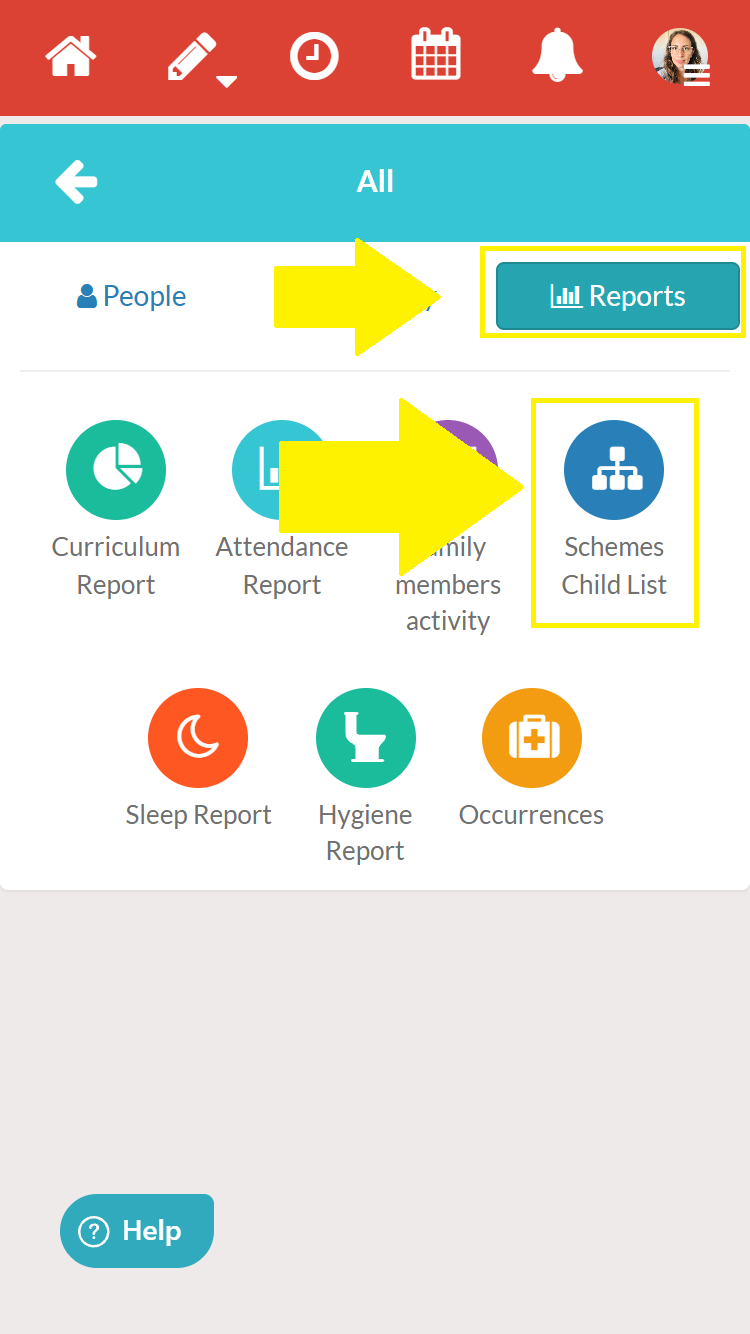
Step 2 – In the main menu, look for the ‘Schemes Child List ' option. Click to access this section.
Step 3 – You will see a list of the configured schemes. Select the scheme you wish to analyse, for example, the scheme called ‘nursery’. This selection is crucial, as the report will be generated based on the information from that specific scheme.
You can also search by a child’s name.
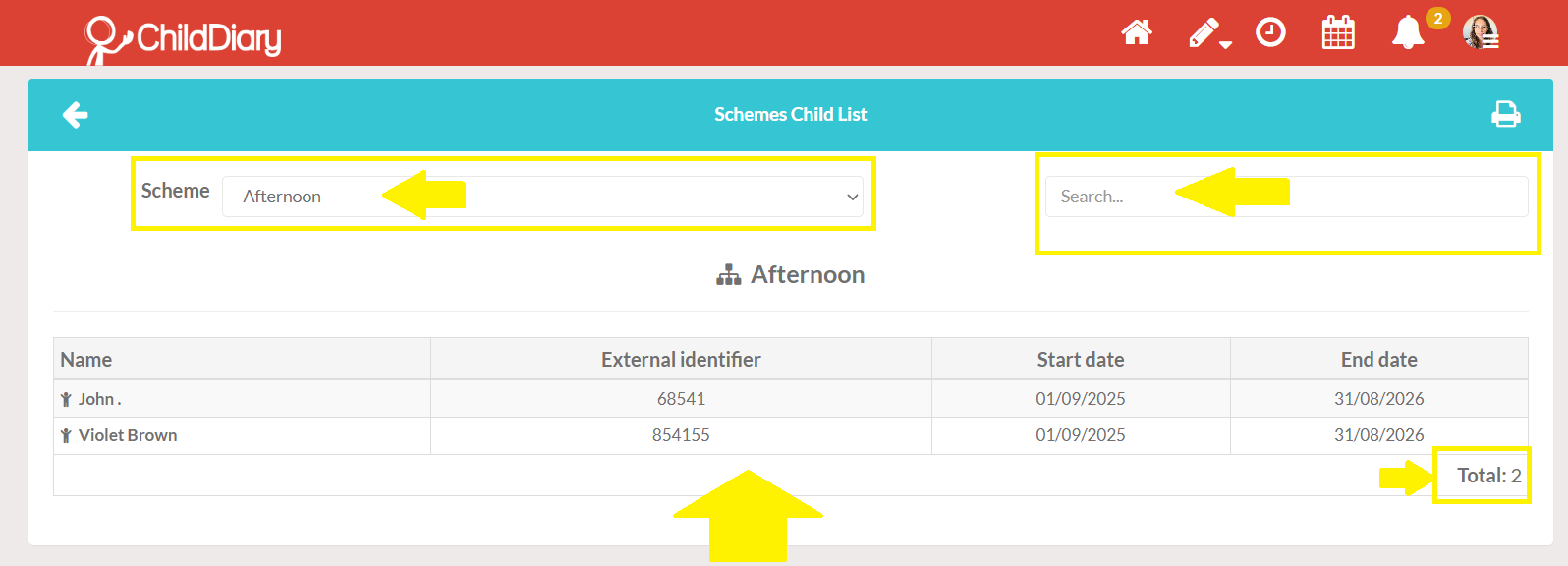
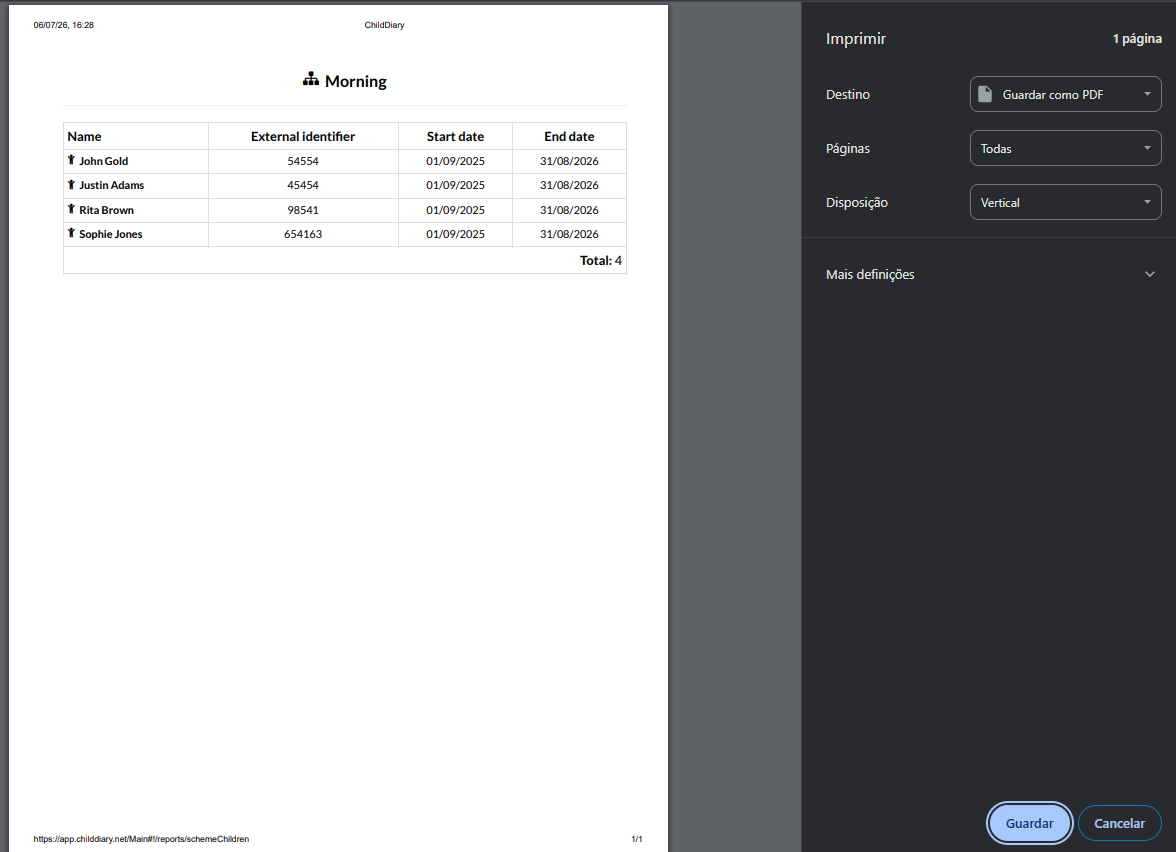
Step 4 – The report generated can be viewed directly on the platform, allowing you to check the total number of children associated with this scheme. In addition, you have the option to export the report in formats such as PDF or Excel, making it easier to save or print.
Finding out which children do not have an associated Scheme
It is possible to find out if there are any children who do not have an associated scheme
Follow steps 1, 2 and 3 described above. Then, select the ‘No scheme' option.
A list of children without any associated scheme will appear.