In this article, we will guide you through the necessary and essential steps to submit your request correctly and manage your absences in an effective and organised manner, ensuring that all stages are followed correctly to achieve a satisfactory outcome.
In this article, Management can administer these absence requests, ensuring that the needs of both the organisation and its employees are met in a balanced way.
Tables of content
How to submit a new absence request
Step 1 – Log in to your ChildDiary account and click on the ‘Attendance’ menu
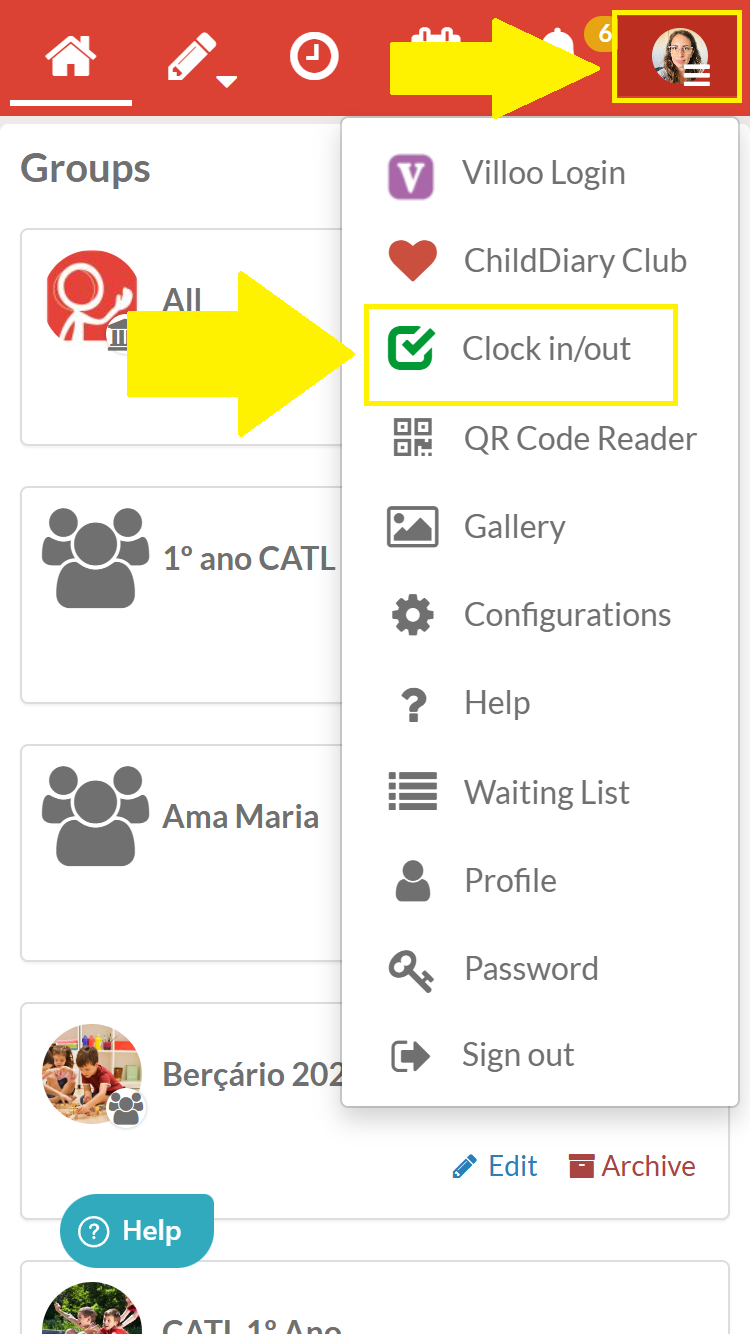
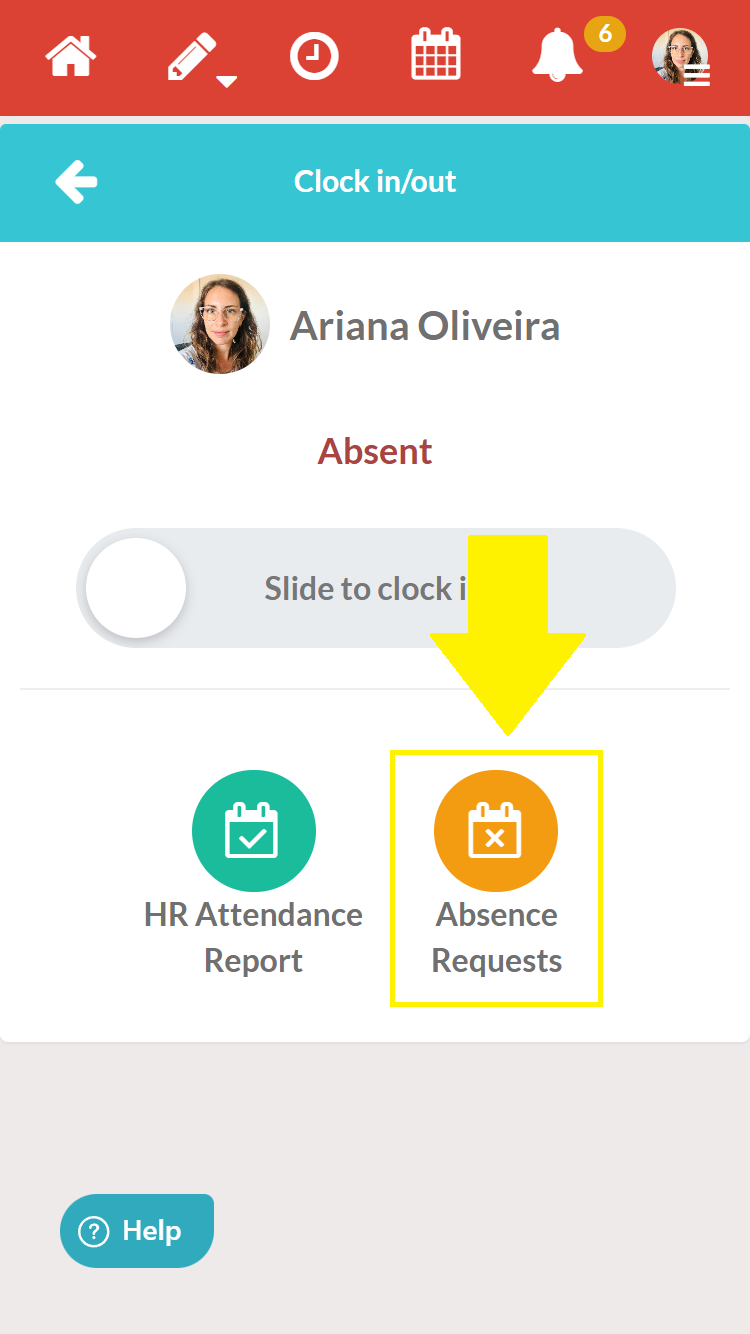
Step 2 – Find and select the ‘Leave Requests’ option
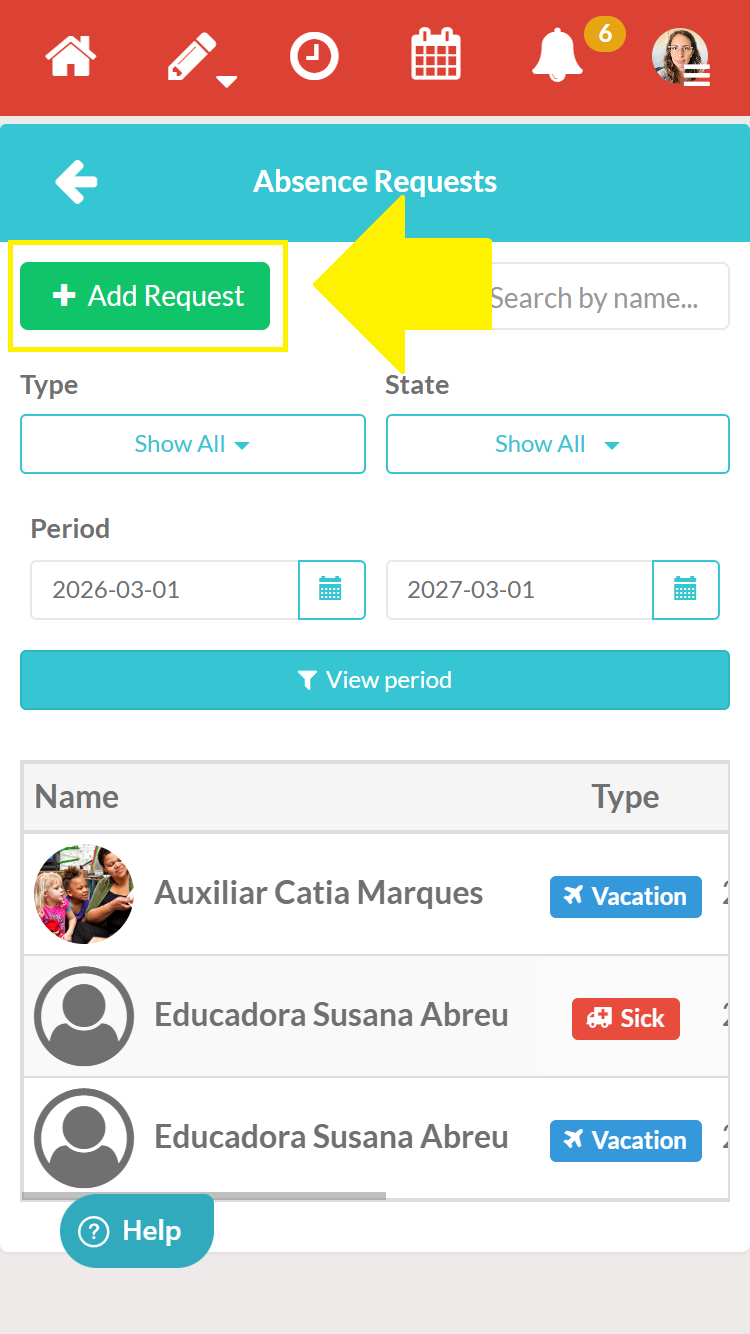
Step 3 – Select the ‘+ Add Request’ option
Step 4 – Complete the Request Form
Please ensure you provide all the information requested:
start and end dates of the absence
reason for the leave
full day or part of the day
notes
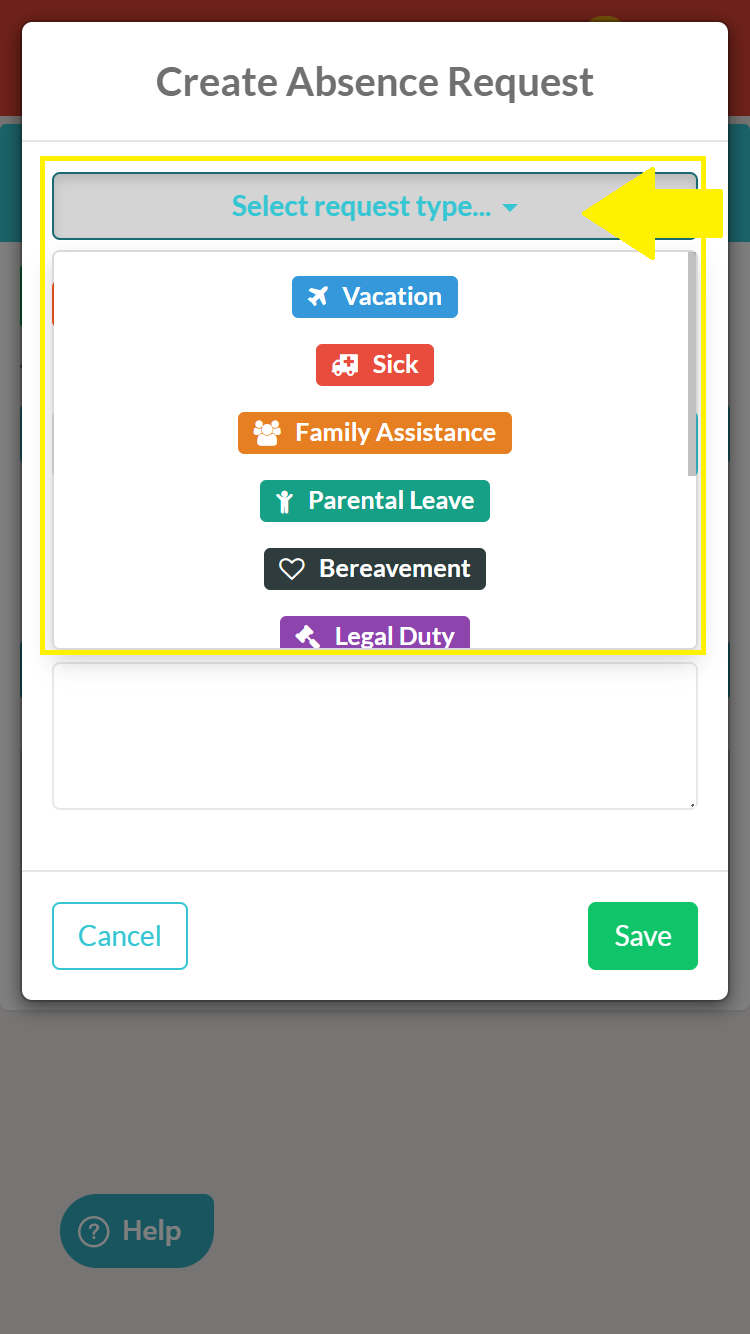
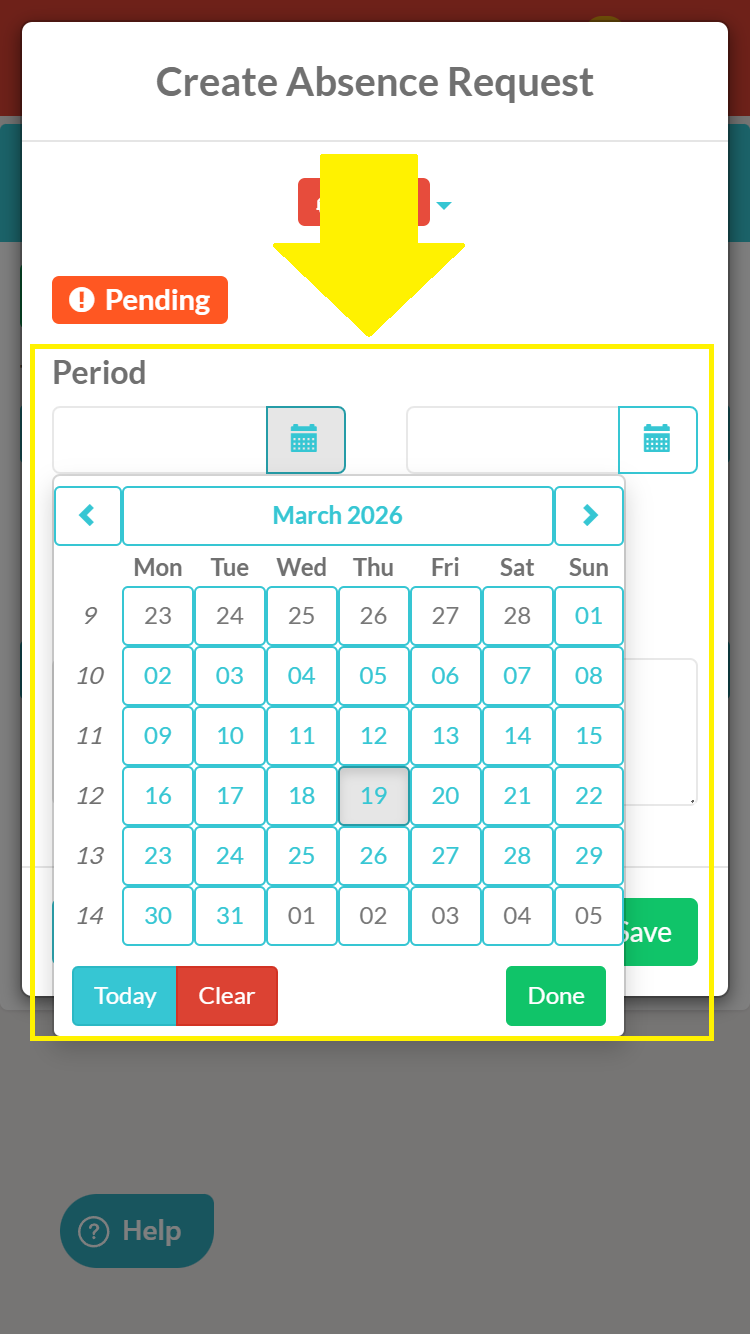
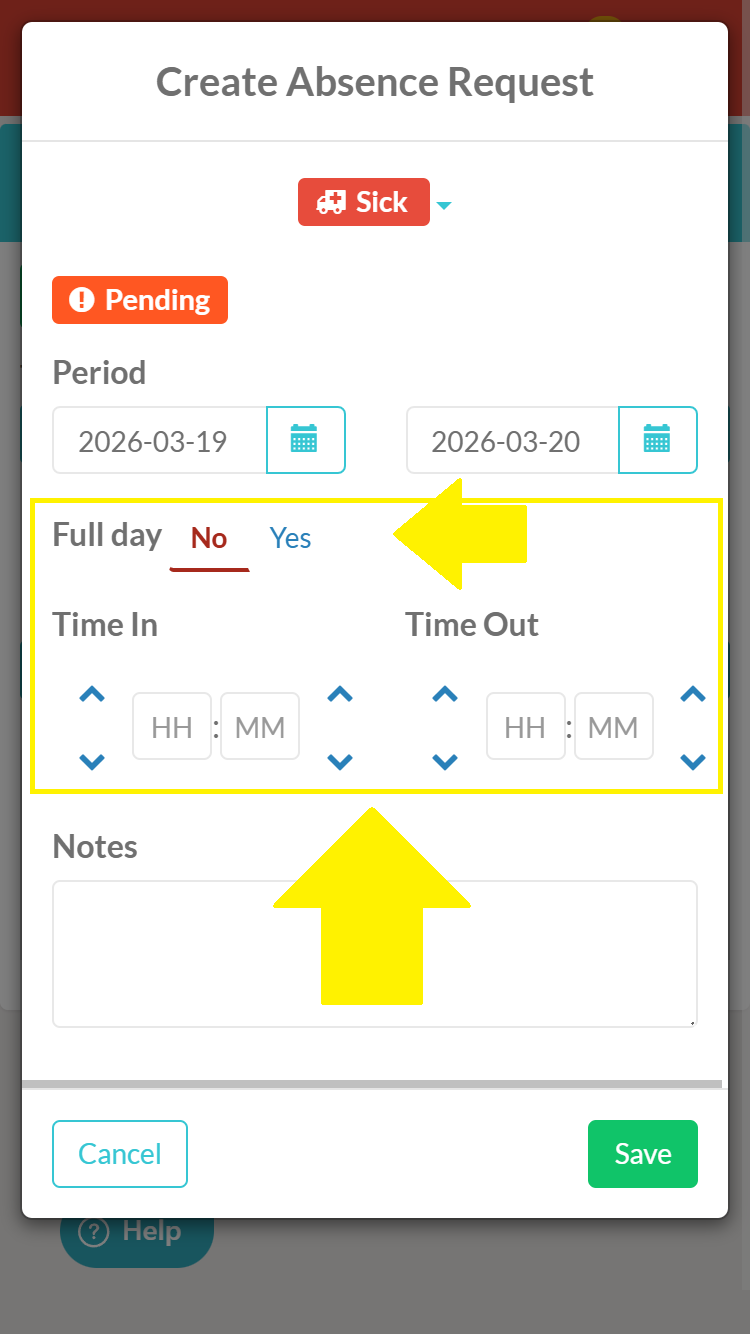
Step 5 – Save your request.
You can then view your leave requests to check whether they have been approved by management.
How management changes the status of orders
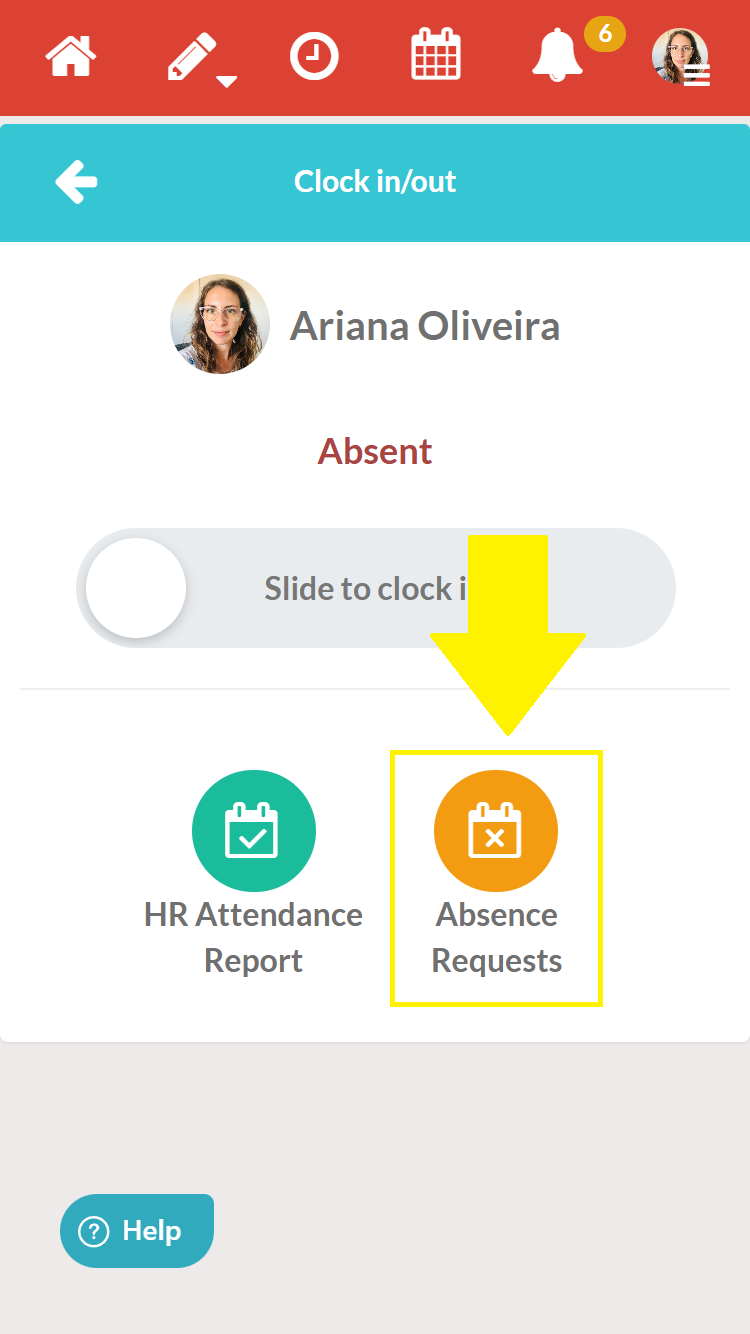
Step 1 – Access the Timesheet
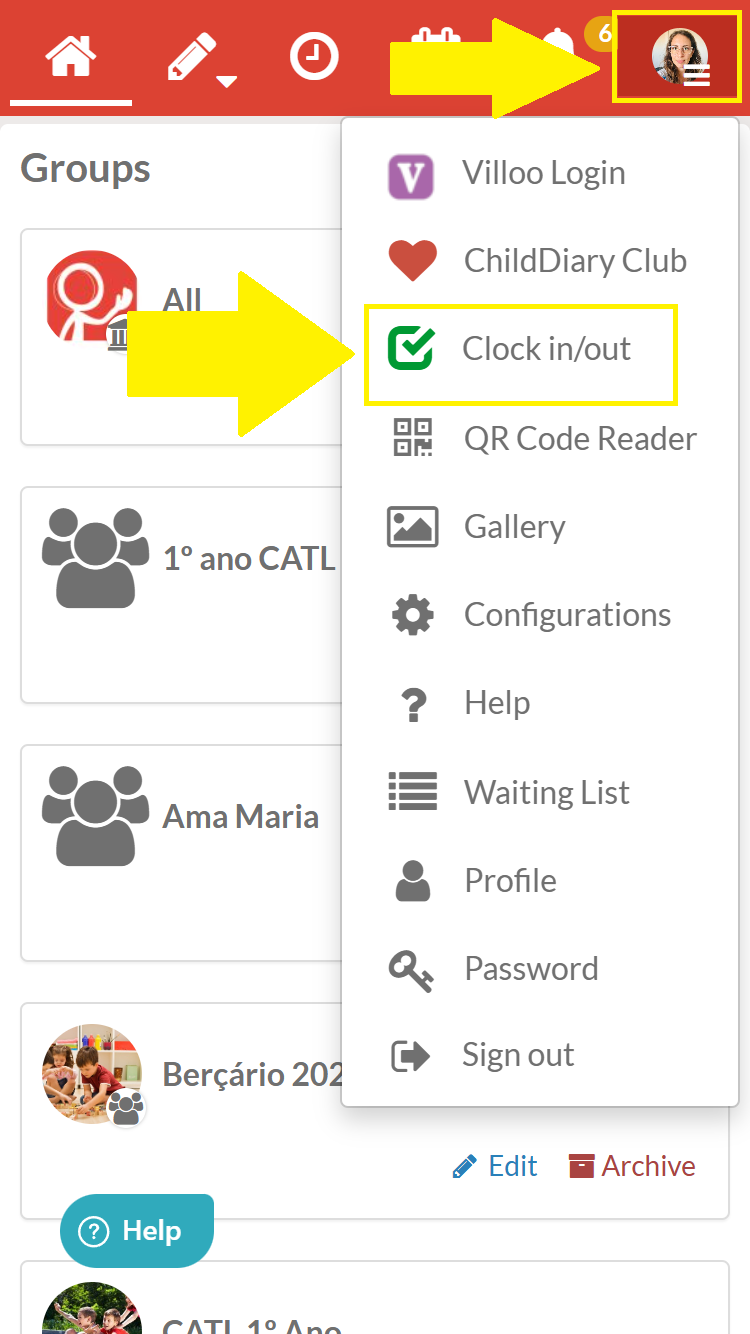
Step 2 – Select the ‘Leave Requests’ option
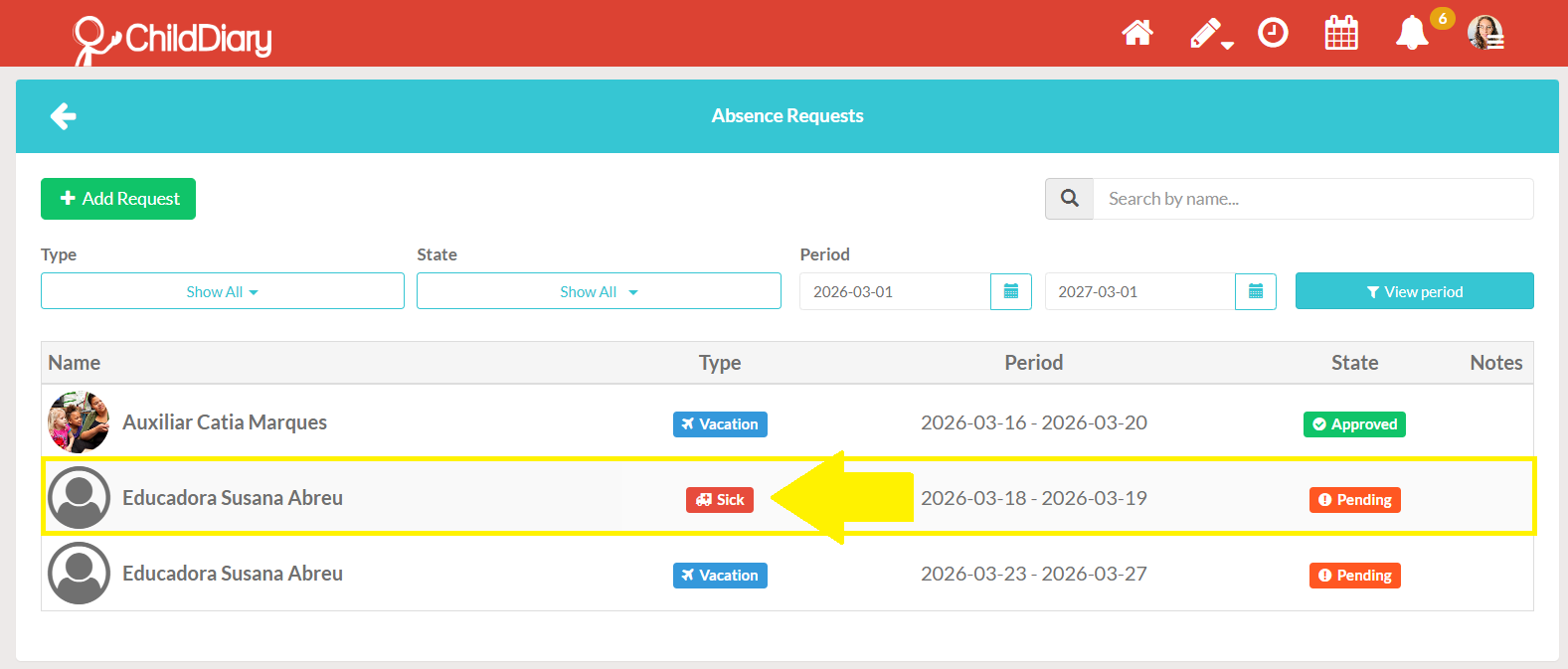
Step 3 – Click on the order you want to edit
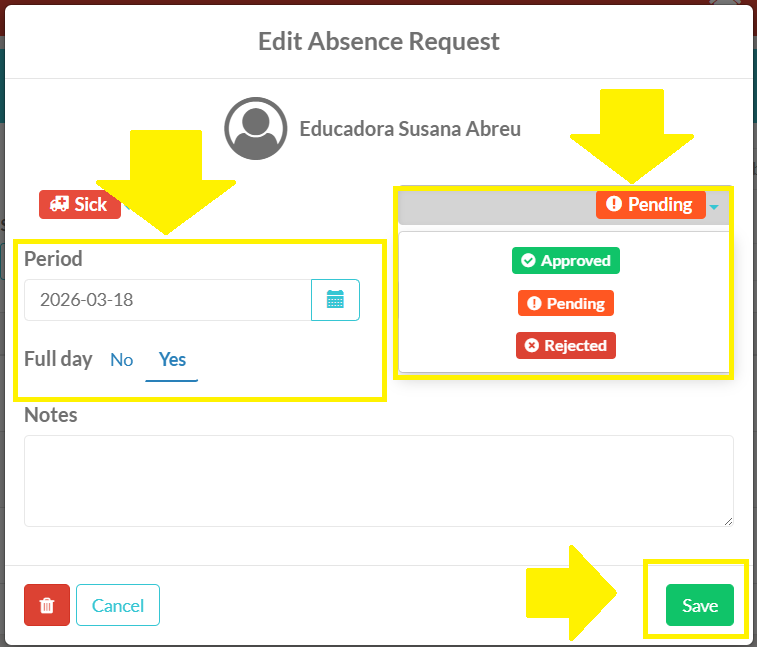
Step 4 – Select the order status
How to view requests
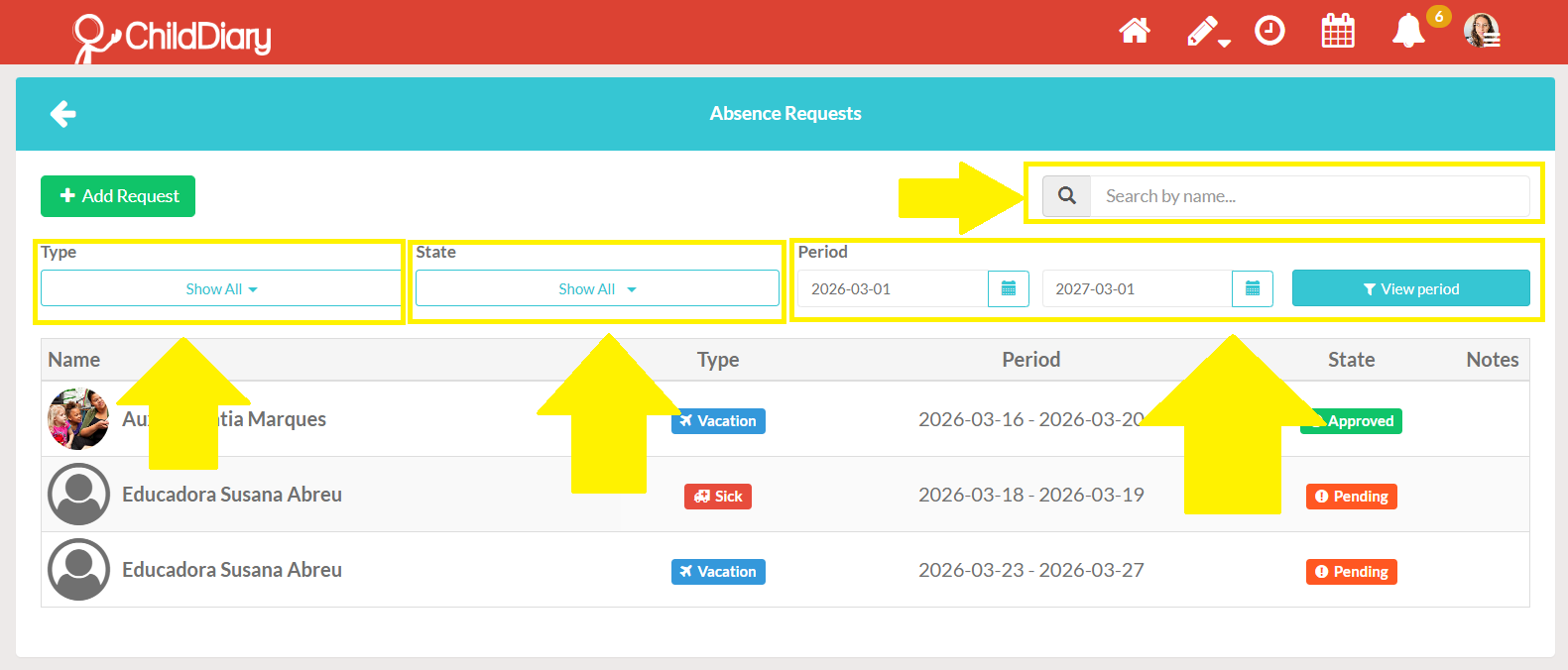
The administrator profile, or the user acting as a teacher or assistant, can view all requests they have previously made, thereby enabling them to effectively track their requests and interactions within the system.
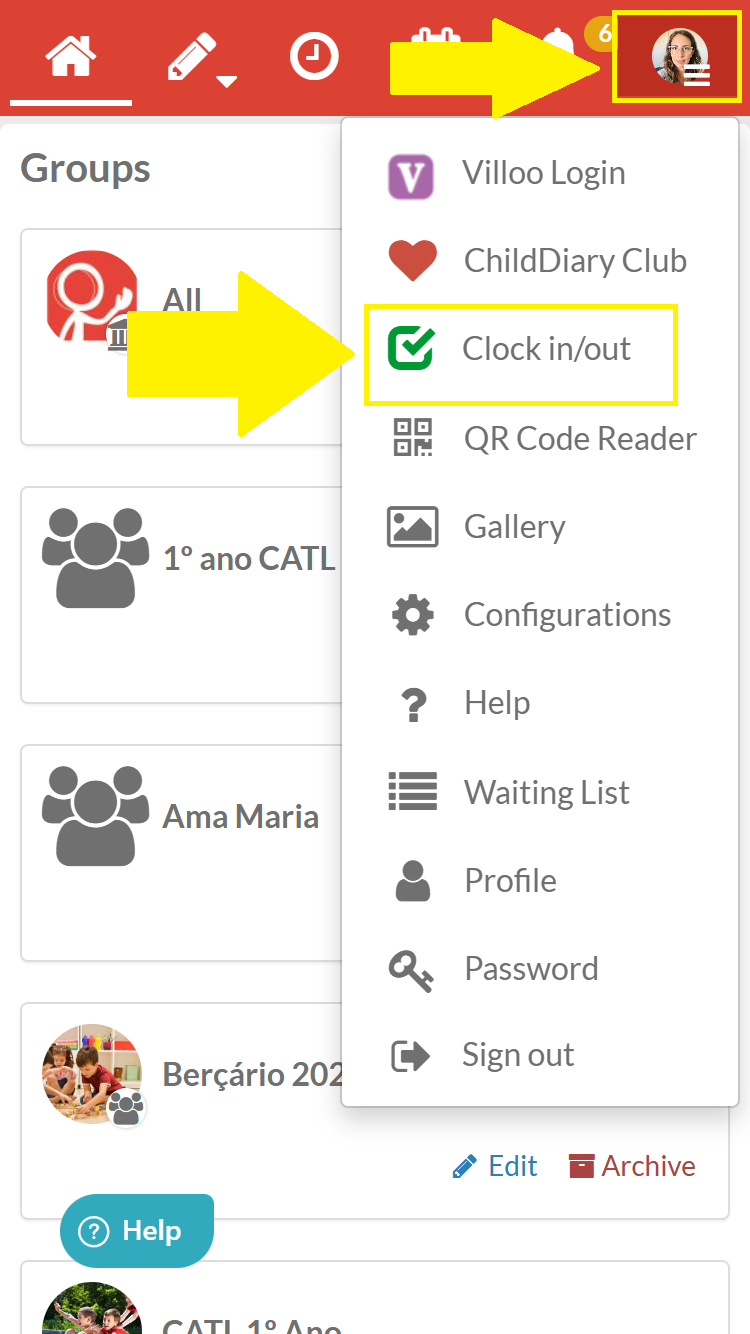
Step 1 – Log in to your account and click on the ‘Attendance Record’ option
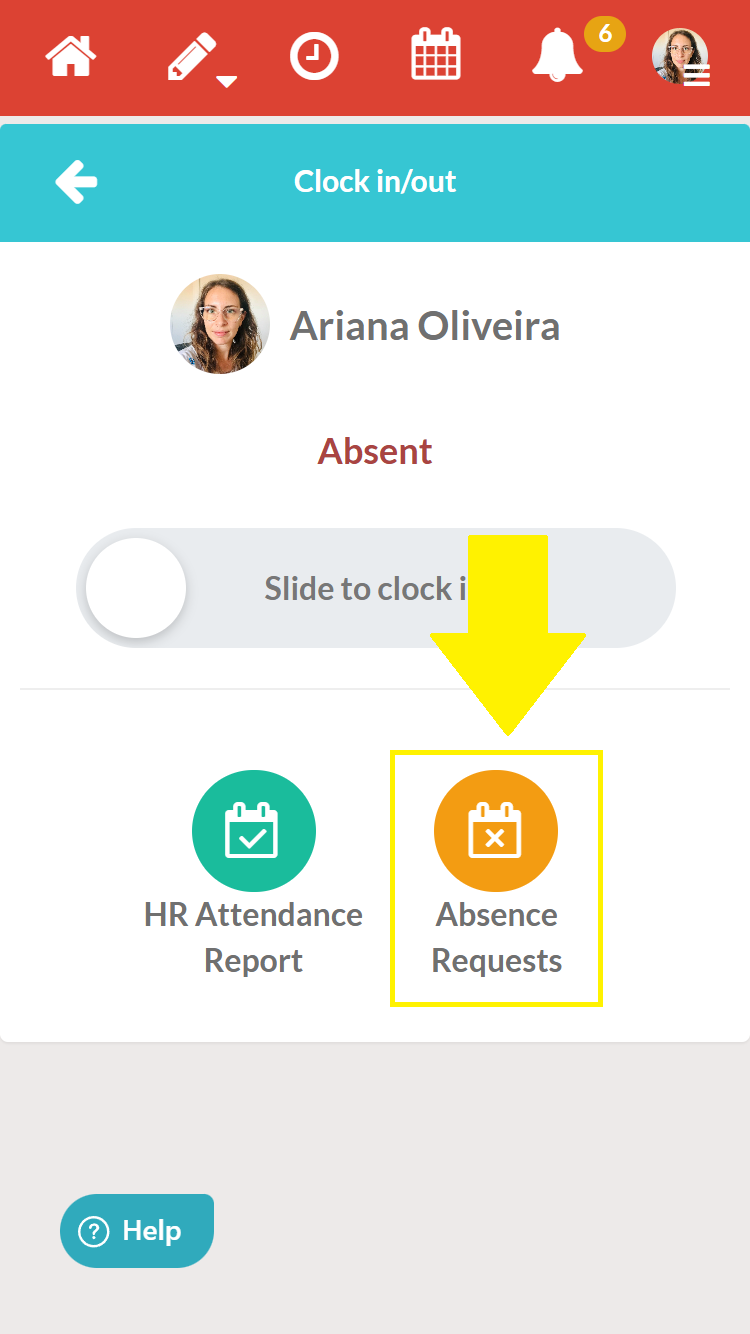
Step 2 – Select the ‘Leave Requests’ option
Step 3 – Select how you want to view requests. You can view them by:
- Request status
- Type of absence
- By employee (option available only to management users)
- By time period