
Pinning content in ChildDiary allows you to highlight important information, updates, or resources that you want to keep easily accessible for users. This feature is particularly useful for ensuring that critical announcements or frequently referenced materials are always at the forefront, enhancing user experience and engagement.
TABLE OF CONTENTS
Who can pin content
In ChildDiary, Management and Educator profiles can pin content for groups or individual children.
Management can pin content for all groups simultaneously by using the ‘General’ recipient when sending the publication. They can also pin content when sending to different groups.
Educators can pin content for their group or for an individual child.
What content can I Pin
The content that can be saved is that created with the following ChildDiary tools:
- messages
- records
- plans
- events
- assessments
How to Pin Content
To pin content in ChildDiary, follow these simple steps:
Step 1 - Log in to your ChildDiary account.**
Step 2 - Navigate to the content you wish to pin via the group history.
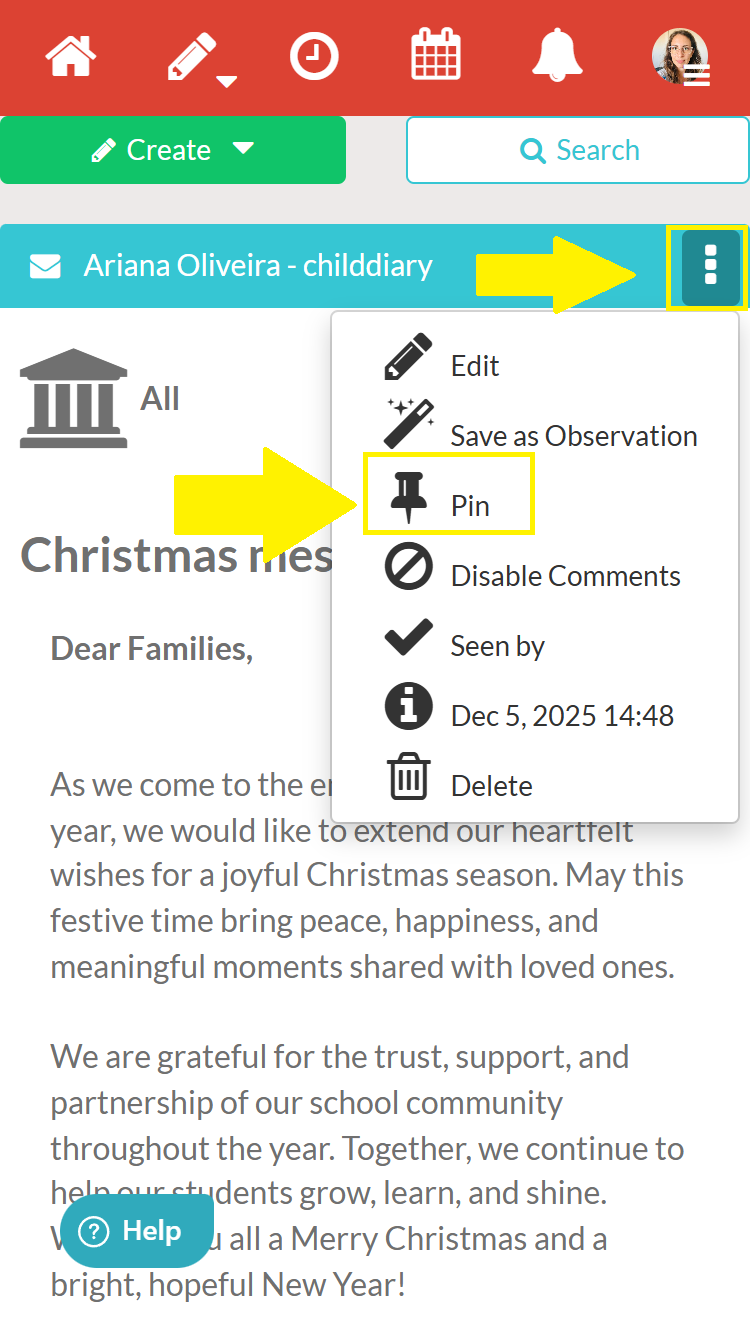
Step 3 - Click on the button with three white dots and select the ‘Pin’ option.
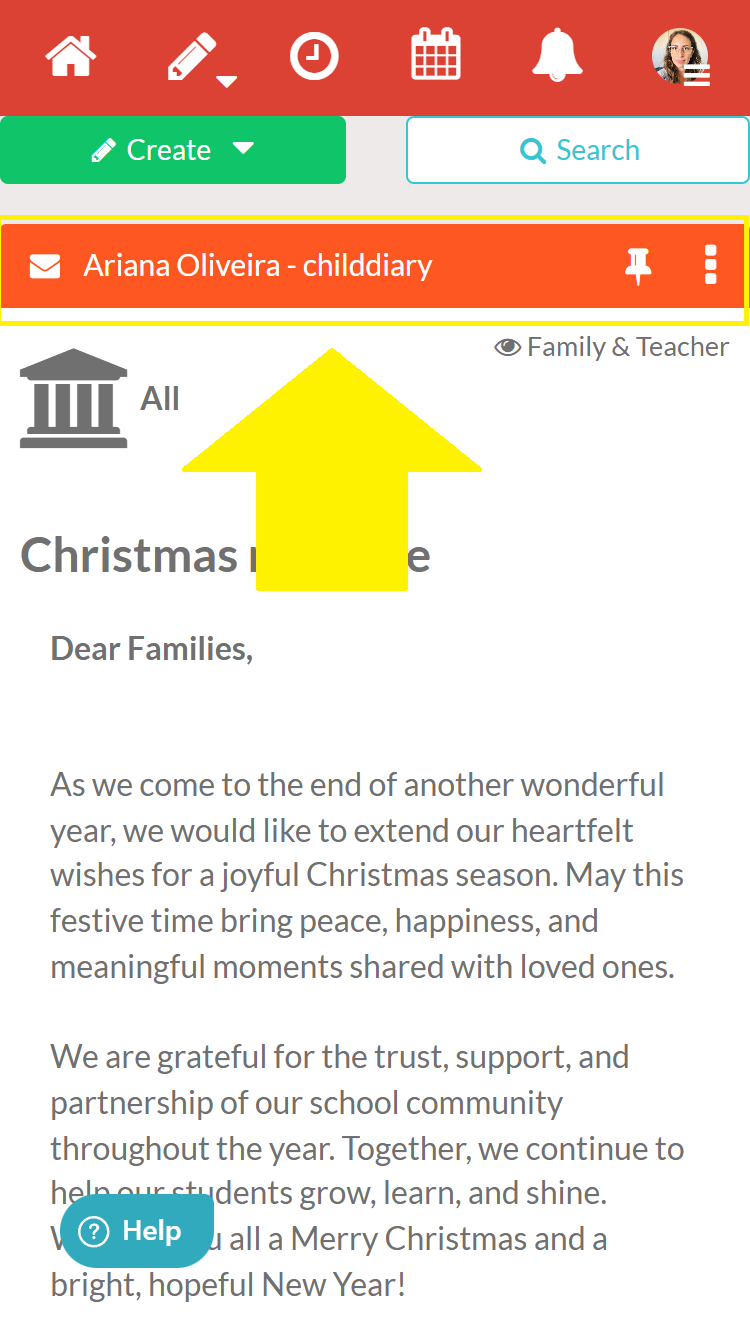
You know that the content is pinned because the bar at the top of the post has turned red.
Managing Pinned Content
Once you have pinned content, you may want to manage it periodically. If the content is no longer relevant, you can easily unpin it by clicking the 'Unpin' icon in the same menu where you pinned it.
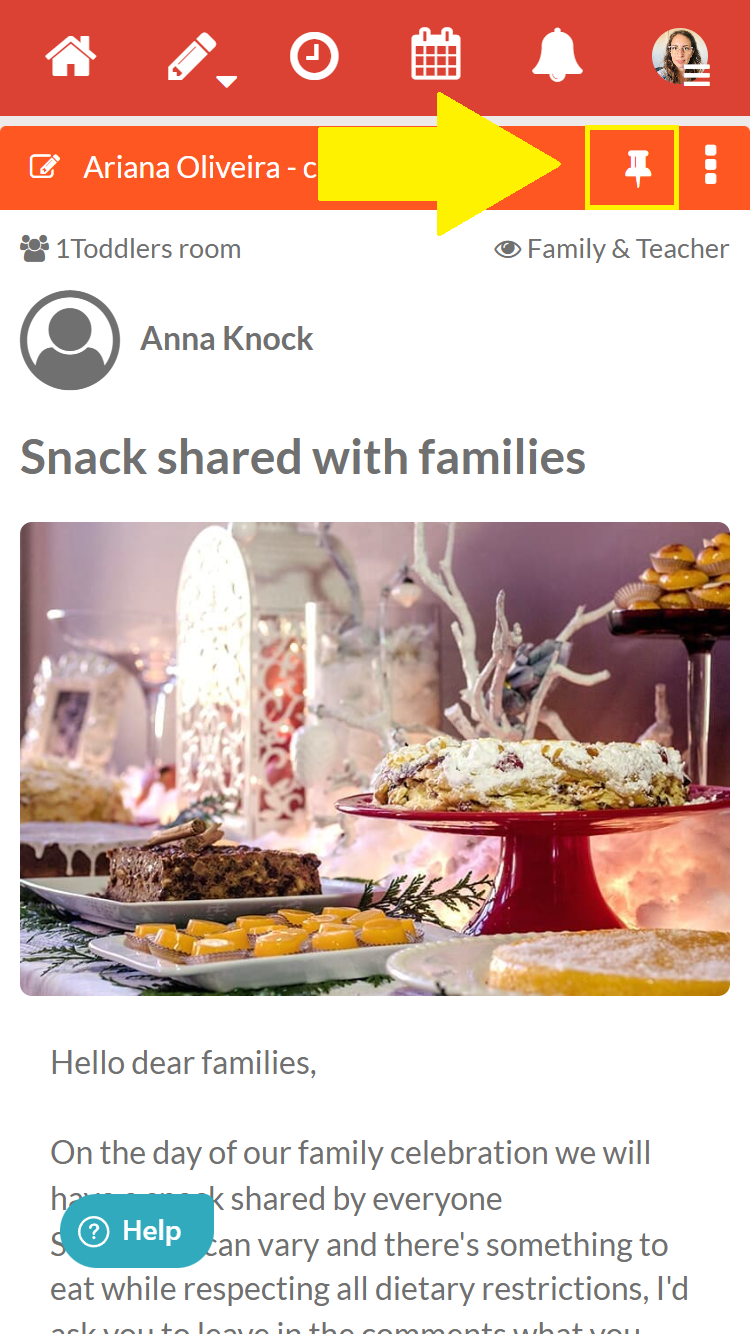
If there is more than one pinned post, they are organised chronologically from the most recent to the oldest publication date.